
Print a site plan
Print mode turns your map into a site plan. The map shows inside a paper frame, with a title block, a legend, a north arrow and a scale bar. What you see on the page is what prints. You can download the page as a PDF, or use it as the Map Print sheet of the design report. Where the plan is crowded, a detail prints part of it larger, as an inset or on a sheet of its own.
The page is kept with the map as you work, so there is no separate save step for it.
Open print mode
With a project open, click Print (the printer icon, Print map) in the bar at the top of the map. Opening print… framing the system shows while the page opens. You can also:
- Press Ctrl+P (⌘+P on a Mac). This saves the map, then opens print mode.
- Click Adjust print in Smart design. When you leave print mode, Smart design comes back.
When print mode opens:
- The tools drawer closes. On a computer the left drawer becomes a narrow rail beside the page: Layers, Maps and Search open over the map, Print shows or hides the print settings.
- The page is centred on the septic plan.
- The labels are tidied so they don't cover each other.
- The title block is filled in from the project and your profile.
- The paper and orientation you used last time are picked again.
The map tool you were using stops while you are in print mode, and comes back when you leave. If you set up the page before, it opens as you left it. If the design has changed since, the page is centred on it again.
The print page
Print mode has four parts: the page, the command bar above it, the print settings and the sheet strip under it.
| Part | What it does |
|---|---|
| The page | The paper as it prints. The map shows inside the frame. The title block runs along the bottom, and the legend, north arrow and scale bar sit on the map. |
| The command bar | Above the page: Paper and Scale, the page tools (Select, Text, Arrow, Callout, Dimension, Note box, Detail box and Undo on the page), Use in report, Download PDF, and the button that shows or hides the print settings. See Notes on the print page. |
| The print settings | Beside the page on the right, with the tabs On page, Labels, Details and Save. On a laptop they are a card over the map that Settings opens and closes, and the page moves over to make room for it. See Print settings and page items. |
| The sheet strip | Under the page: a tab for each sheet of the print (1 · Site plan, 2 · Detail A), Add a sheet, and how large the page shows on the screen, for example Fit page · 80%. |
On a laptop the command bar is shorter: Use in report is under ⋯, and Download PDF reads PDF.
Click the title block or the legend to type in it. Drag the legend, the north arrow and the scale bar to move them.
In print mode the top bar also has a What a click picks button, next to Help. See What a click picks.
Move the map on the page
The map stays live inside the frame:
- Drag the map to move it on the page.
- Zoom with the mouse wheel or a pinch to change the scale. The Scale button in the command bar shows the new scale, for example 1 in = 90 ft. The title block and the scale bar follow.
- To set the scale again, open Scale in the command bar and pick Fit the site, 1 in = 40 ft, 1 in = 20 ft or Other….
Features can't be moved or edited in print mode. To change the design, click Back to map. On the page you can still drag labels and click a feature to change its label: see Labels.
The map's undo (Ctrl+Z) is off in print mode. Use Undo on the page in the command bar instead.
Details and sheets
Video coming soon: Detail box (print page). Until then, follow the steps on this page.
When the labels of a drainfield crowd the plan at its scale, the Details tab says so, for example The drainfield is crowded at 1 in = 50 ft, with Show it in a detail (and a larger paper to try). A detail prints part of the plan larger. Under Where it prints:
| Choice | What prints |
|---|---|
| Inset | A box on the plan with that part at its own scale. When there is no clear space for it at that scale, it moves to the next scale that has room and the card says so, for example No clear space at 1 in = 20 ft, so it prints at 1 in = 30 ft. A scale you pick yourself stays. When it is too large for the page, the tab offers a coarser scale or its own sheet. |
| Own sheet | A sheet after the plan: that part at its own scale, a key plan, and the trench and pipe schedules. A box too large for its sheet even at 1 in = 30 ft takes 40, 50 or 60 ft. |
| Keyed notes | The system's labels become numbers on the plan, and their words go in a notes box with a short trench schedule. |
Insets, notes boxes and the Sheets box go where they don't cover the house or the system. When the page has no room for that, the card says so: drag the box somewhere clear, or try a larger paper.
Each detail has a card on the Details tab: its Detail scale, how the plan draws its box (Outline + label, Lines only or Everything), the Trench and pipe schedule switch, Fit box to the system and Remove. To make your own, click Detail box in the page tools (or Draw a detail box) and drag a box on the plan. Click a box to select it, drag it to move it and its handles to resize it. Drag a box's label (or select it with Tab and use the arrow keys) to move it; it stays where you put it. Add a sheet in the sheet strip adds a detail on its own sheet.
Click a tab in the sheet strip to see that sheet as it prints. On a detail's own sheet, drag its map to move what it shows. A print of more than one sheet with details numbers its sheets (Sheet 1 of 2 in the title block) and lists them in a Sheets box on the plan; Sheets box under On page shows or hides it.
Download the PDF
Before you download, at the top of the print settings, checks the page: the scale is a standard engineering scale (else Use 1 in = 30 ft, or the next standard scale), the title block has the designer, the parcel ID and the date, the design has its absorption area (else Finish the design first takes you back to Smart design), and the design's lines show over the aerial imagery (else Use Design 40% fades the imagery on paper). Download PDF is there too.
Click Download PDF in the command bar (PDF on a laptop, and in a phone's print header). The Making the PDF window shows how far it has got, with Cancel. When it's done, the PDF goes to your downloads folder and a message says Map PDF downloaded.
The PDF:
- Has a page for each sheet, on the paper and orientation you chose: the site plan, then any section or detail printed on its own sheet.
- Draws the features, labels and notes as sharp lines and text, over the basemap as an image.
- Adds a line at the bottom of the map saying where the basemap and layer data come from.
- Is named after the page title, for example 7010-follin-rd-bellville-oh-usa.pdf.
If part of the page could not be added, the message says so, for example The basemap and images could not be added. The rest of the PDF is still made. If the PDF can't be made at all, you see Couldn't create the map PDF: try again.
Use the page in the design report
Click Use in report in the command bar (under ⋯ on a laptop, or on the Save tab) to make this page the design report's Map Print sheet. landplan.io saves the page and the map, then opens Details (the design calculator) on the Report step, at Report pages.
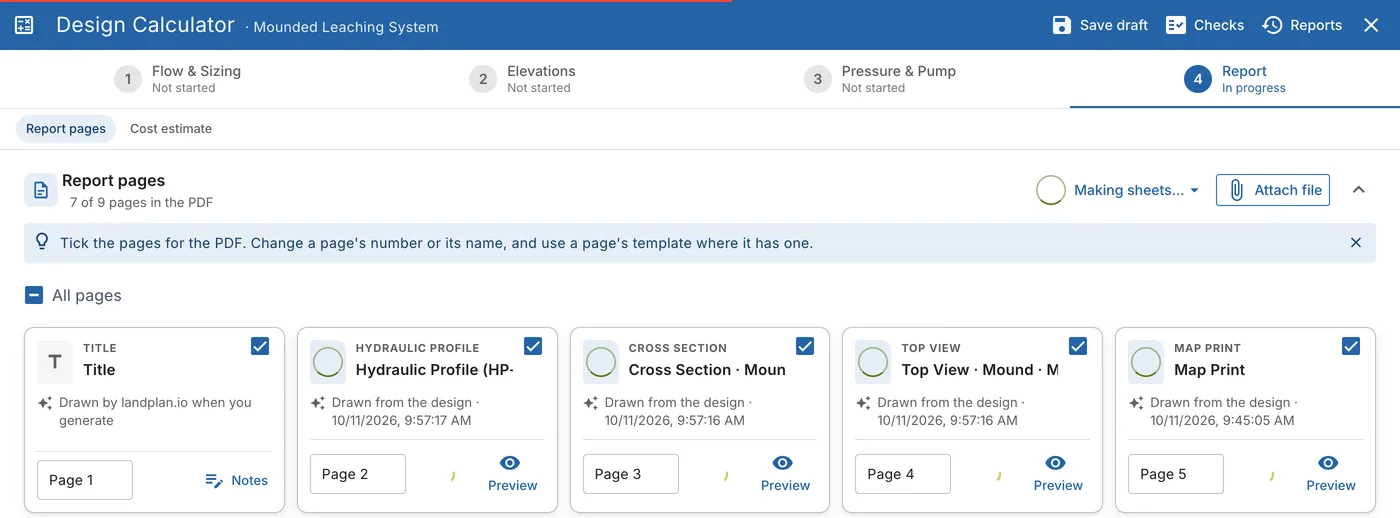
The Map Print sheet is drawn from your print page, so the report shows the same paper, scale, title block, legend and notes, its details too. A print of more than one sheet adds all its pages, without Sheet n of N: the report numbers its own pages. Tick or untick it like any other report page. If you change the print page later, the report uses the new page the next time its sheets are made.
On a phone
On a phone the page fills the screen under the print header: ‹ Map, Print, the print settings button and PDF. The sheets of the print are tabs above the page, and the page tools are a bar of icons over the page. The print settings are a sheet at the bottom: down, it sums them up (Letter, wide · 1 in = 50 ft · Detail A); tap it, or the settings button, for its tabs:
| Tab | What's on it |
|---|---|
| Paper | Letter, Legal, Tabloid or 24 × 36, and Wide or Tall |
| Scale | The map scale |
| On page | Title block, legend, north arrow, scale bar, notes, section and plan view, the legend corner and the colour |
| Labels | Tidy labels for me, the side lengths and What a click picks |
| Details | The details, as on a computer |
| Save | Saved with the project, and Use in report |
Download PDF stays at the bottom of the sheet (Download PDF · 2 sheets when the print has more than one).
Back to the map
Click Back to map in the top bar; on a phone, ‹ Map in the print header. The page is saved with the project in the background, and the map comes back with the view, the tool and the drawers you had before.
Saved with the project, on the Save tab, is a reminder: your print page is kept with the map, details and all, and it opens the same way the next time you click Print.
Related guides
From the landplan.io blog: