
Getting started
This page takes you from signing up to your first septic design and its report. It takes about fifteen minutes. Each step links to the page that covers it in full.
In short:
- Create your account.
- Start a project from the property's address.
- Design the system with Smart design or Auto design.
- Check the numbers in Details.
- Download the report, and print the site plan.
Watch a whole design, from the address to the printed plan, in about a minute. The map's Help has a video like this for each step and each system, in its Guide tab.
Create your account
Open landplan.io/auth/register, or click the sign-up button on landplan.io.
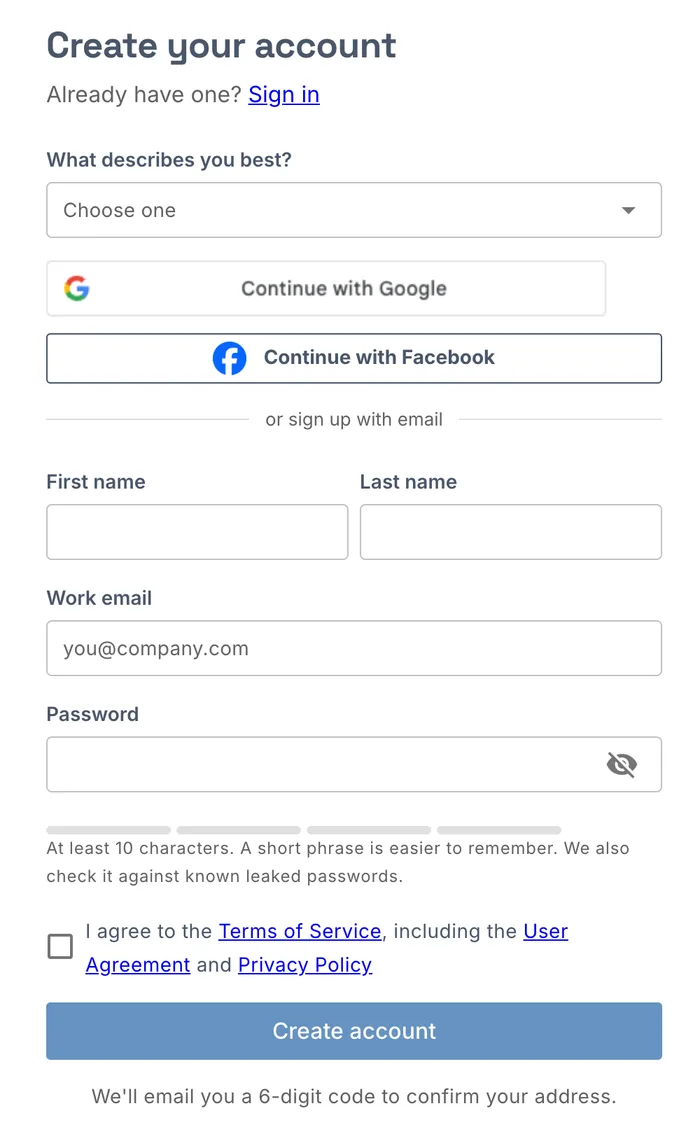
- Under What describes you best?, choose what you do, for example Septic Designer, Septic Installer or Soil Evaluator.
- Click Continue with Google or Continue with Facebook, or fill in your First name, Last name, Work email and a Password of at least 10 characters.
- Tick that you agree to the Terms of Service, then click Create account.
- With an email sign-up, we email you a 6-digit code. Enter it to confirm your address.
Your free trial starts at once. Designers, installers, soil evaluators and inspectors go to the Projects page. Homeowners and real estate agents go to the job form, to ask a designer for a plan: see Jobs.
Start a project
A project is one property: its parcel, its soil tests, its maps and its design. On the Projects page, a new account sees the Get started with Smart design checklist. Click New project on the checklist, or at the top right of the page.
The map opens with the New project window.
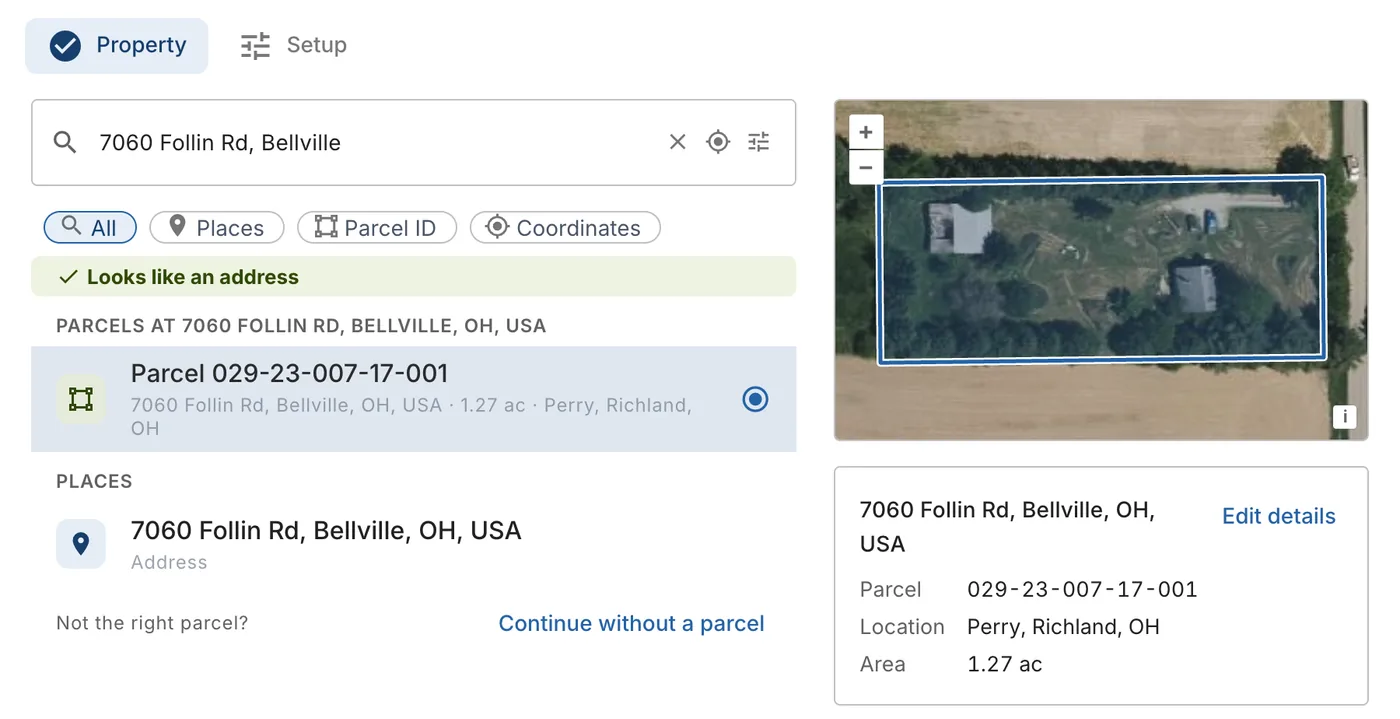
- Type the property's address, a parcel number or a latitude and longitude in the search box, and pick the result.
- Check the parcel: the window picks the parcel at the address and shows it on an aerial photo, with its parcel number, location and area. Click another parcel in the list if it isn't the right one.
- Under How do you want to design this property?, keep Smart design, or choose Auto design or Blank map.
- Click Quick create.
The project is created and the map opens at the parcel, with the parcel lines, contours, water features and aerial photos already loaded. See Find a property and start a project for every option, such as starting without a parcel or from a site plan.
Add the soil tests
The design is sized from the soil. If you have soil test results, add them before you design, so the sizes are right from the start:
- On the map, open Tools › Soil (Boundaries, tests, test pits).
- On the Projects page, click Soil tests in the project panel. Import from soil report reads the soil tests from the soil evaluator's report.
Without a soil test, Smart design sizes the system with a default loading rate until you click Add soil data. See Soil overview.
Design the system
landplan.io designs the septic system on the map in two ways. Both start from Design (the magic wand) on the map toolbar.
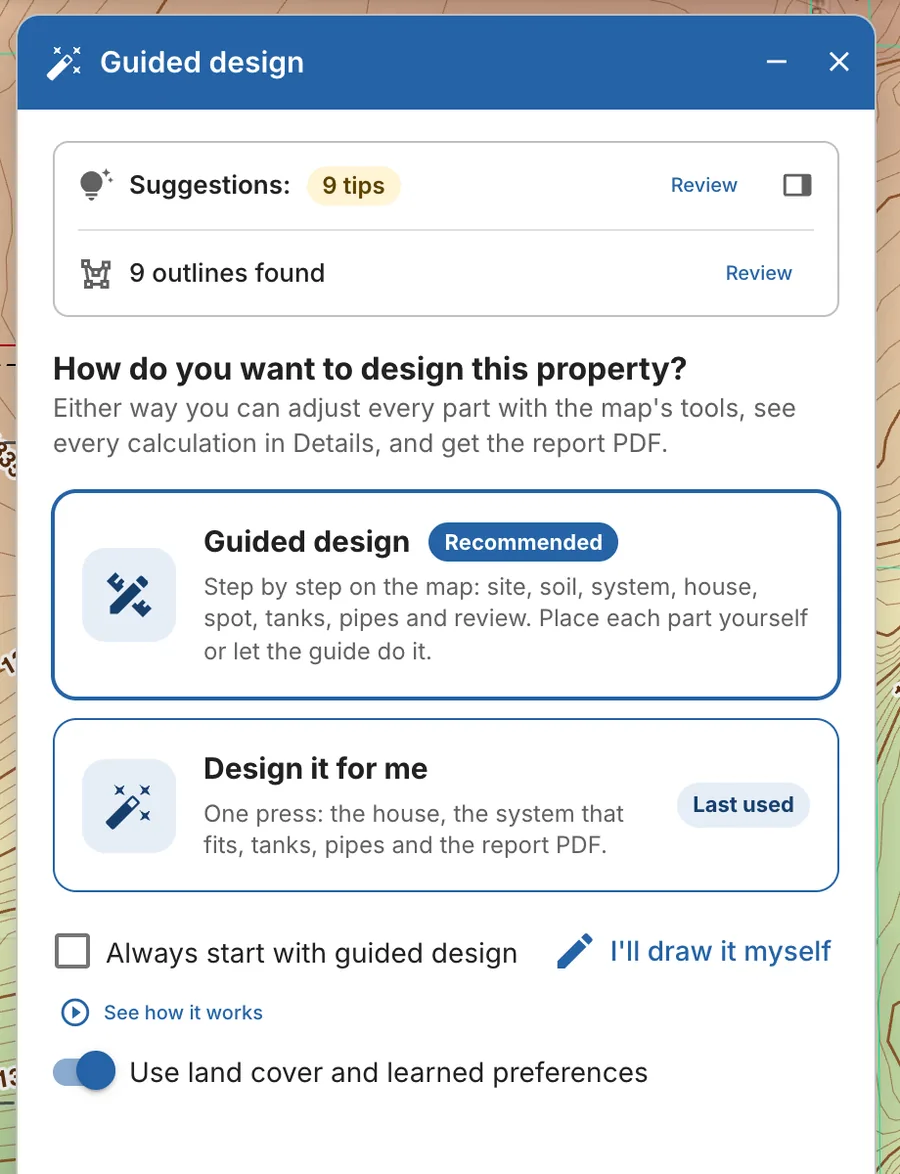
- Smart design works with you step by step: site, soil, system, house, spot, tanks, pipes and review. It reads the parcel and your soil tests, ranks the systems that fit, and then you place each part, or click Place it for me.
- Auto design does it in one press: it picks the system that fits and drafts the house, tanks, pipes and report PDF for you to check.
With Smart design:
- Pick a system. The systems that fit the parcel come first, marked Recommended or Allowed · fits. Check the bedrooms, choose a system and click Design it →.
- Place each part. For each part, click Place it for me, or Draw it myself to use the map's tools.
- Check and finish. When the panel says All parts are on the map, move anything that fails a setback check, then click Check again.
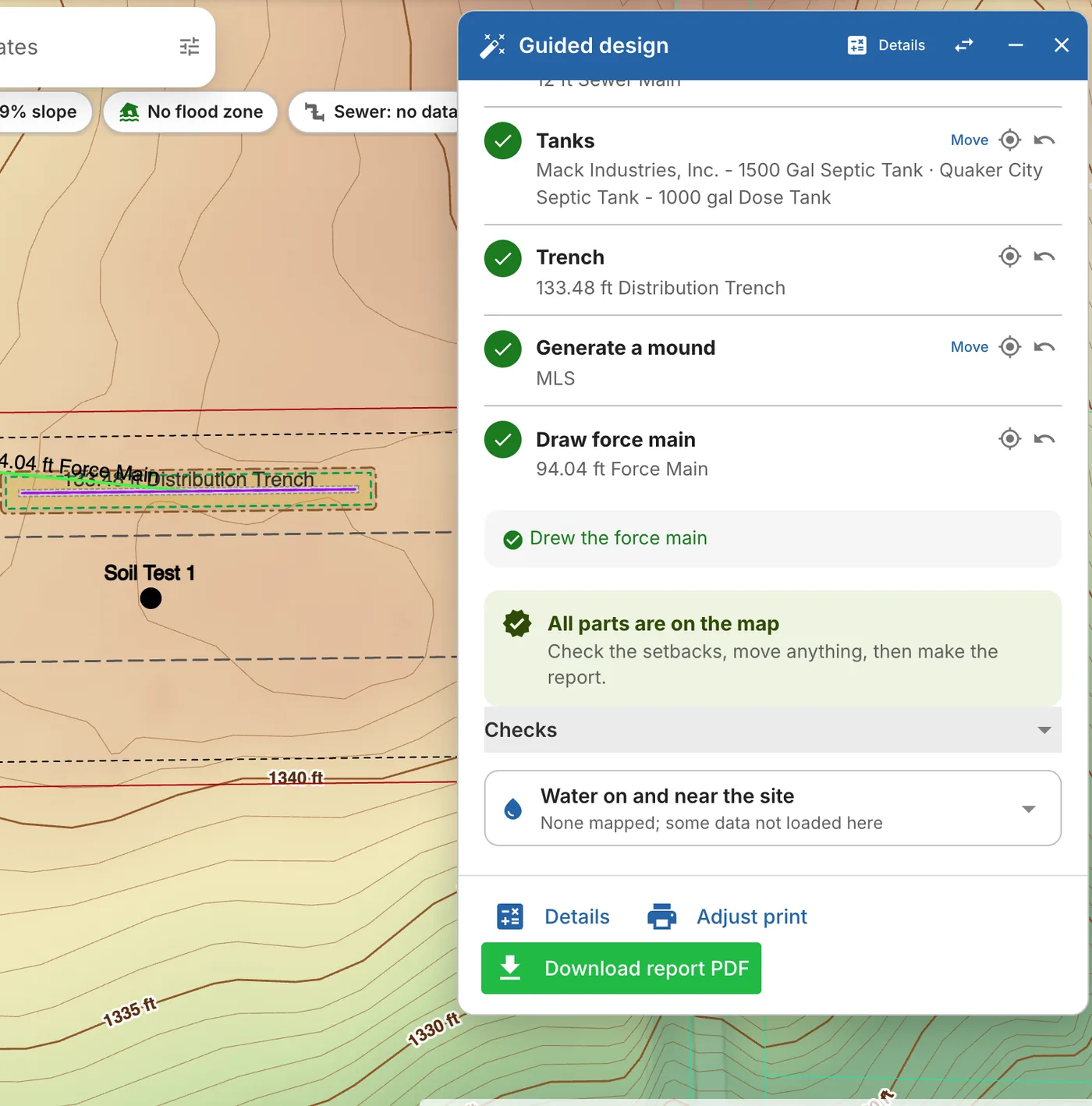
Everything the guide draws is an ordinary map feature: you can move or change any part with the map's tools. The map saves as you work. See Smart Design and Auto Design.
Check the numbers in Details
Click Details on the map toolbar, or Details in the Smart design panel. Details is the design calculator: it shows every number behind the design, in four steps:
- Flow & Sizing: the design flow, the soil, the tanks and the absorption area.
- Elevations: the elevations from the house to the absorption area.
- Pressure & Pump: the laterals, the pressure network and the pump, for a pumped system.
- Report: the report pages and the cost estimate.
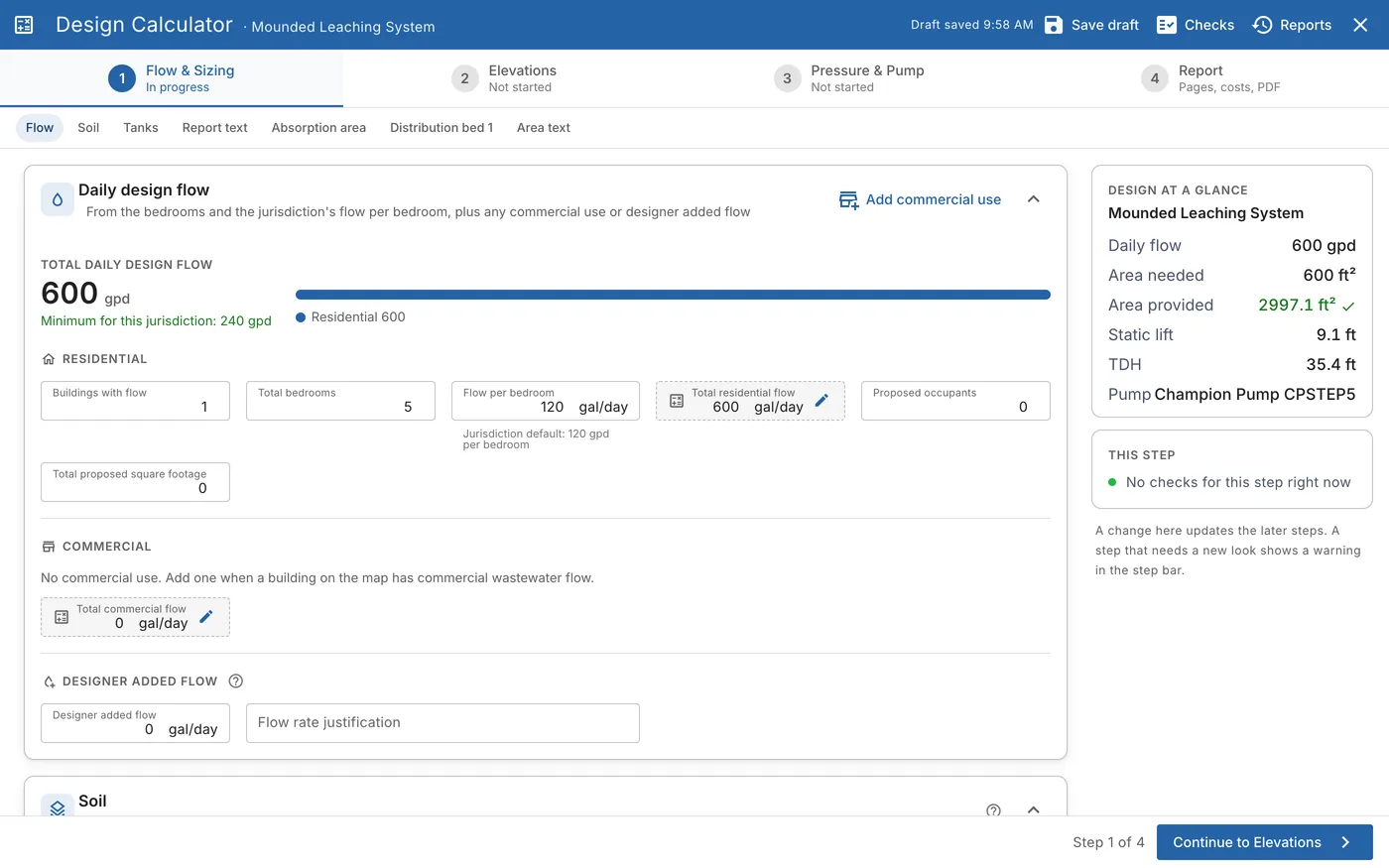
See Details and the Report PDF.
Download the report
On the Report step of Details, choose the report pages and click Generate report PDF. The PDF opens in the report viewer: click Download to save it. In Smart design, Download report PDF in the panel's footer makes the same report.
For a one-page site plan to hand out or submit, click Print on the map toolbar, set up the page and click Download PDF. See Print a site plan.
Each report you make is a new version, dated, so everyone knows which one is current. See Report versions.
Next steps
- Track your projects. Set a status and a due date, filter and search your projects, or see them on a map. See Project management and Projects map.
- Share the design. Send a read-only map link to the homeowner or the inspector. See Map sharing.
- Set up your defaults. Choose your usual products, distributor and prices once, for every new design. See Design setup.
- Learn the map. See Map tools for a tour of the map screen. Click Help on the map toolbar for help on the tool you are using.
For the full video guide, a short step-by-step and common problems, see Septic Design.