
Basic tools
The basic tools are in the Basic tools group of the Tools drawer. Map features draw on the map, and Import & export bring data in and out.
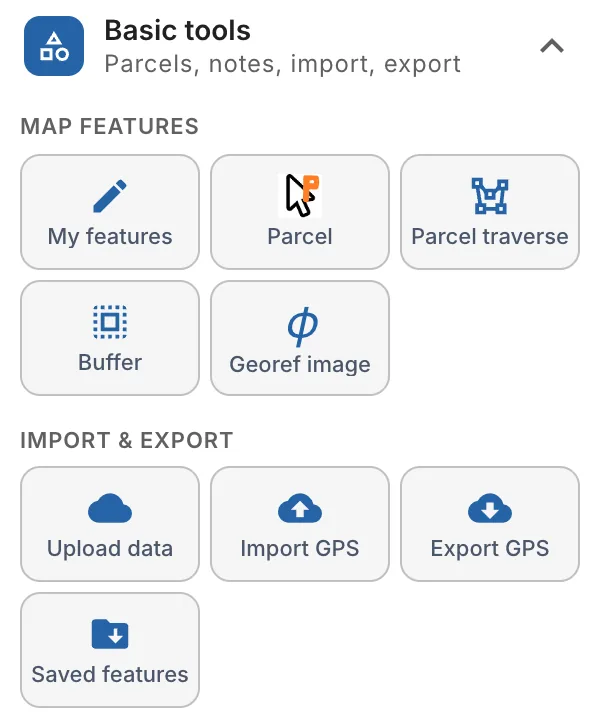
| Tool | What it does |
|---|---|
| My features | Draw your own points, lines and areas. |
| Parcel | Draw or edit the parcel outline. |
| Parcel traverse | Draw the parcel from the deed's bearings and distances. |
| Buffer | Draw a buffer around a feature. |
| Georef image | Place an image or PDF plan on the map. |
| My location | Use your GPS location. Shown once the map has found you. |
| Import file | Add a drawing or GIS file to the map. |
| Export data | Download layers as a CAD, GIS or GPS file. |
| Export to CAD | Download the design as a DXF drawing. |
| Import GPS | Add GPS points to the map. |
| Saved features | Place features you saved before. |
Buffer, Georef image, Import file, Export data, Export to CAD and Saved features need an open project. Your imported files are under Notifications › Imports in the top bar (see Imports).
My features
My features draws your own points, lines and areas: a shed, a fence, a note on the site. They go in the My Map Features layers, apart from the design.
- Click on the My features tool in Basic tools. The Create My Map Feature window opens.
- Choose the Feature Type: Point, Line or Polygon.
- Type a Feature Name, and a Feature Description if you like.
- Click Create Feature, then draw it on the map: click each point and double-click to finish.
To stop drawing, press Esc or click the stop button at the top of the window. To change a feature's look, right-click it and choose Edit style…. See Styling layers.
Video from an older version
This clip was recorded in version 2.2.1, when the app was called NewSeptic and had a blue top bar. The toolbar, menus and panels look different today: follow the steps in the text.
Parcel
Parcel draws or edits the outline of a parcel, for a property with no parcel data or one whose lines are wrong.
- Click on the Parcel tool in Basic tools.
- Click each corner of the parcel on the map, and double-click the last one.
- Right-click inside the new parcel and choose Commit Drawn Parcel to make it the project's parcel, with its setback buffers.
- Press Esc, or click Parcel again, to stop.
To draw the parcel from the deed's bearings and distances instead, use Parcel traverse. See also Drawing the project parcel.
Video from an older version
This clip was recorded in version 2.2.1, when the app was called NewSeptic and had a blue top bar. The toolbar, menus and panels look different today: follow the steps in the text.
Parcel traverse
Parcel traverse draws the parcel from a start point and the calls of the deed: the bearing and distance of each side.
- Click on the Parcel traverse tool in Basic tools. The Parcel Traverse window opens.
- Under Start point, click Pick the start point on the map, then click the corner the deed starts from.
- For each call, enter the distance and the bearing: N or S, degrees, minutes and seconds, then E or W. Click Add call for the next one.
- Click Create parcel.
Tick Adjust the corners so the traverse closes (compass rule) when the last call doesn't end exactly at the start point. Clear starts over. See Draw a parcel from scratch.
Buffer
Buffer draws an area a set distance around a feature, for example a setback around a well.
- Click on the Buffer tool in Basic tools.
- Click the feature on the map. The buffer window opens.
- Enter the Feature Name and the Buffer Width.
- Click Generate Buffer.
Show more buffer options sets the end cap style and the quadrants. You can also right-click a feature and choose Create buffer. See Create buffers.
Georeference an image
Georef image places an image, such as a surveyor's plan or a soil evaluator's map, on the map, lined up with the ground, so you can draw on top of it.
- Click on the Georef image tool in Basic tools.
- Choose the image on your computer (.jpg or .png), and click Georeference image.
- The screen splits into the image and the map. Click a point on the image, then the same point on the map, such as a parcel corner.
- Add at least 2 matching points. The image then shows on the map, and as a layer in the Layers tab.
See Georeference image tool for each step.
My location
My location uses your device's GPS location on site: to find the parcel you're standing on, or to add a feature where you are.
Video coming soon: My location. Until then, follow the steps on this page.
- Click Show my location under the search bar. Allow the browser to use your location.
- Click My location in Basic tools. landplan.io looks for the parcel at your location.
- If it finds one, choose Add parcel to current project, Create new Project with this Parcel or Remove parcel from current project.
- Or choose a component to add at your location, such as a septic tank, a soil test, a water well or a benchmark.
The My location tile only shows once the map has your location. While your location is on, the bar at the bottom of the map shows your latitude, longitude, altitude and speed, and can record the track you walk.
Import file
Import file adds a drawing or GIS file from an engineer, a surveyor or another source to the map, as new layers: DWG, DXF, shapefile, KML/KMZ, GPX, GeoJSON or CSV.
- Click on the Import file tool in Basic tools.
- Drop the file, or choose it on your computer. It is read on our server.
- Check its layers and where it lands on the parcel, then click Add N layers to map. They show as layers in the Layers tab.
A file over 100 MB (up to 2 GB) imports in the background: keep working, and the bell tells you when it is ready. Imports lists this map's imports. See Big files.
Export to CAD, next to it, downloads your design as a DXF drawing for AutoCAD and other CAD programs.
See Import and export drawings and GIS files for the file types and options.
Import GPS points
Import GPS adds points from a CSV file of GPS coordinates, such as soil tests or corners staked in the field. Each row has a name, the latitude (or northing), the longitude (or easting) and the elevation.
- Click on the Import GPS tool in Basic tools.
- Choose the coordinate reference system of the points: a world system (WGS84, for latitude and longitude) or State Plane.
- Choose the CSV file.
- Click Add GIS Data.
See Import GPS points.
Export data
Export data downloads your layers as a CAD file (DXF, DWG, LandXML, DGN), a GIS file (GeoPackage, shapefile, KML/KMZ, GeoJSON, file geodatabase and more) or a survey and GPS file (CSV, Excel, GPX).
- Click on the Export data tool in Basic tools.
- Choose the file type.
- Choose the layers, or only what you selected on the map, and the coordinate system.
- Click Download.
See Export data. For a CSV of named GPS points with your own columns, see Export GPS points.
Saved features
Saved features places a feature you saved before, such as a house plan you use often, in this project.
- Click on the Saved features tool in Basic tools.
- Click the map where the feature goes. The saved features list opens.
- Find the feature, with Search in saved features if you have many, and click Select.
To save a feature for later, right-click it and choose Save feature to my drawings. See Save and reuse feature drawings.