
Signing in and account security
This page covers every way to sign in to landplan.io, what to do when you forget your password, and how to keep your account safe. To make an account, see Sign up and sign in.
Sign in with your password
Open landplan.io/auth/login.
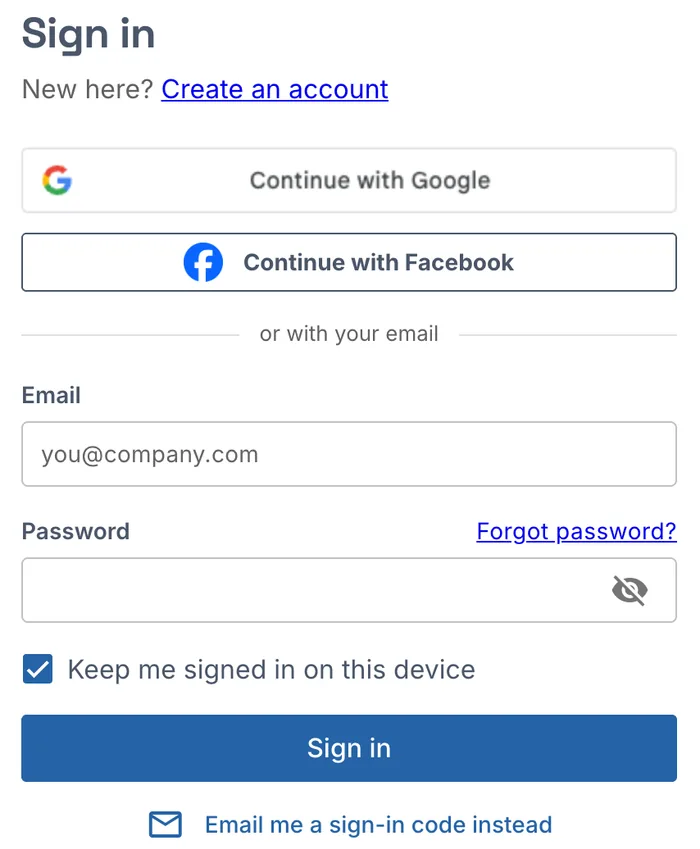
- Type your Email and Password. The eye button shows or hides the password.
- Leave Keep me signed in on this device ticked on your own computer. Untick it on a shared one.
- Click Sign in.
You go back to the page you were on, or to your projects.
| Keep me signed in | How long you stay signed in |
|---|---|
| Ticked | 14 days from the last time you use landplan.io on this device, renewed each time you use it. After 60 days you sign in again, however often you use it. |
| Not ticked | Until you close the browser, or after 12 hours without using landplan.io. |
New here? Create an account opens the sign-up page.
Sign in with Google or Facebook
If you signed up with Google or Facebook, click Continue with Google or Continue with Facebook on the sign-in page and pick your account in the window that opens. You don't need a landplan.io password.
To sign in with your email as well, set a password: see Change or set your password.
Sign in with a code
You can sign in without a password: we email you a 6-digit code and a sign-in link.
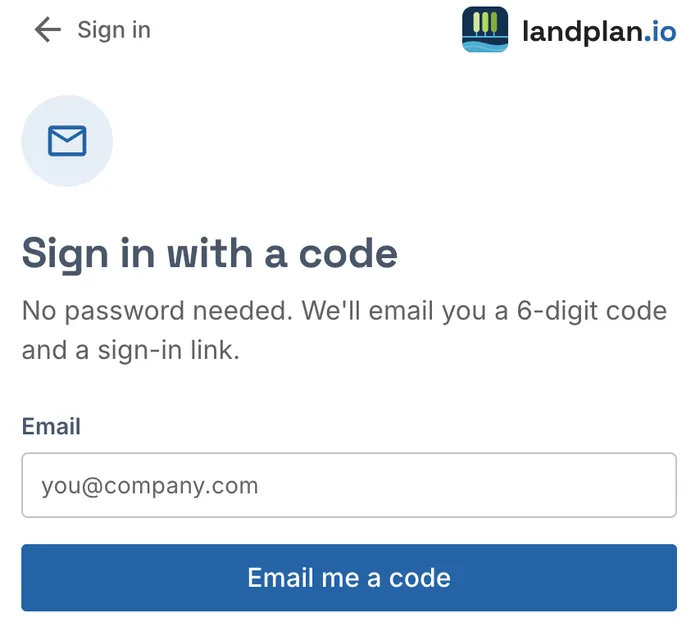
On the sign-in page, click Email me a sign-in code instead, or open landplan.io/auth/code.
Type your Email and click Email me a code.
Type the code under Sign-in code and click Sign in. Or open the link in the email.
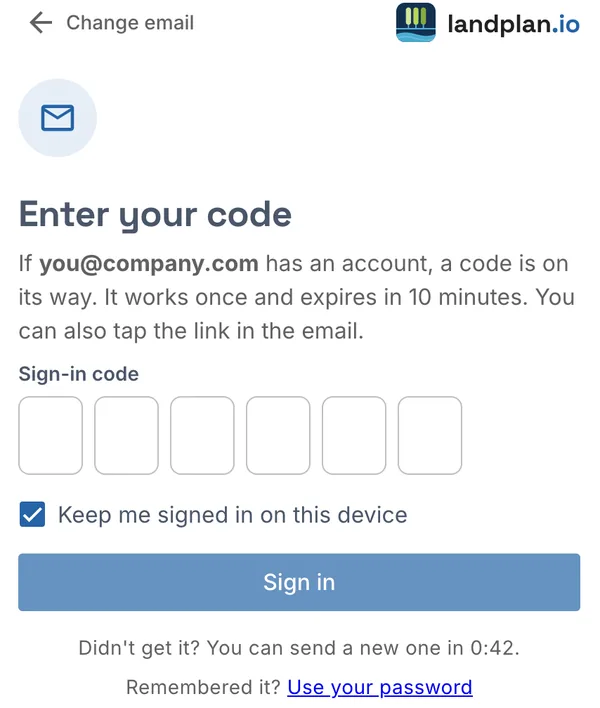
- The code and the link work once, and for 10 minutes.
- After 5 wrong codes, that code stops working. Ask for a new one.
- Signing in with a code also confirms your email, and ends a lock after too many wrong passwords.
For your security, the page says a code is on its way whether or not the email has an account. Change email goes back to the address. Use your password goes back to the sign-in page.
When we ask for a code
Sometimes the right password isn't enough: when we can't tell that the sign-in comes from a person, we check that the inbox is yours.
- If your email is confirmed, Confirm it's you asks for the 6-digit code we just emailed. Type it under Code from the email and click Continue. We remember this browser after that.
- If your email isn't confirmed yet, the Sign in with a code page opens: Your password was right: we'll email you a 6-digit code to finish signing in.
Forgot your password
Click Forgot password? above the password on the sign-in page.
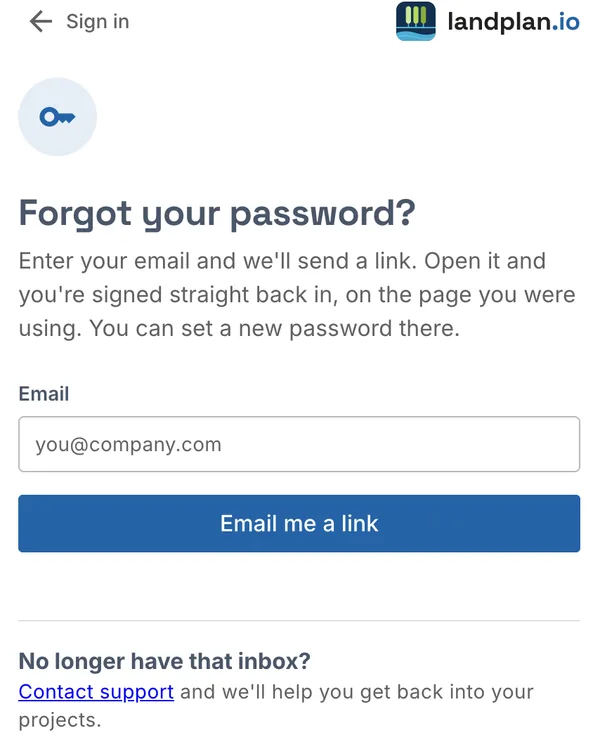
- Type your Email and click Email me a link.
- Check your inbox: open the link in the email, on any device, within 30 minutes. Or type the 6-digit code from the email under Code from the email and click Continue.
You are signed straight back in, on the page you were using. Setting a new password is offered, not forced:
- Type a New password and click Save and continue.
- Or click Skip, keep my current password. Sign-in & security in the account menu then shows Set password, and the page has a yellow reminder with Set a new password, until you set one.
If you no longer have that inbox, click Contact support: we'll help you get back into your projects.
If an old link no longer works, This link doesn't work any more shows. Click Email me a new link, or Sign in with your password.
Change or set your password
Open the account menu, then Account > Sign-in & security, and click Change password. If you sign in with Google or Facebook only, the button reads Set a password.
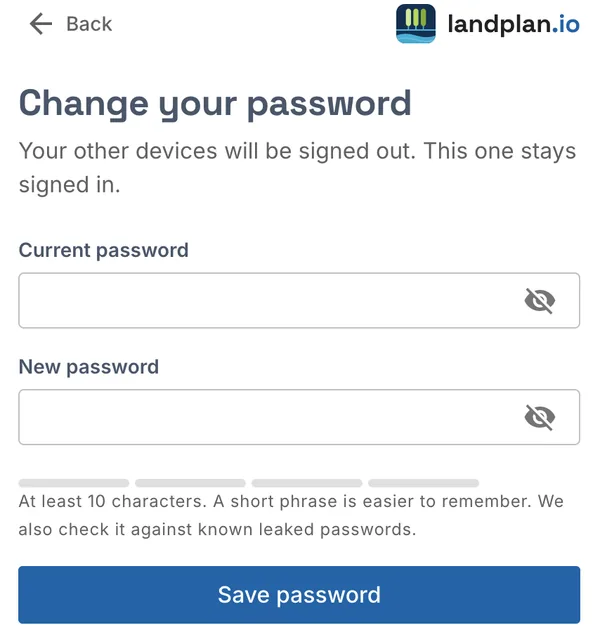
- Type your Current password. It isn't asked for when you signed in with an emailed link or code in the last 30 minutes, or when the account has no password yet.
- Type a New password: at least 10 characters. A short phrase is easier to remember than a jumble of characters.
- Click Save password.
A password found in a known data leak is refused: choose another. When it's saved, Password saved. Your other devices were signed out. This browser stays signed in, and we email you a notice that the password changed.
Too many wrong passwords
After 5 wrong passwords in a row, sign-in stops for 5 minutes: Too many attempts. For your security, try again in 5 minutes, or reset your password. Meanwhile you can:
- Click Get a sign-in link by email, or Forgot password?.
- Sign in with a code.
An emailed link or code ends the lock at once.
Signed out while you work
If your session ends while a page is open, Sign in to keep working opens over the page. Your page and your unsaved changes stay where they are, and anything that didn't save is sent again once you are signed in.
- Type your Password and click Continue.
- Or click Email me a code, type the code from the email and click Continue. Use my password goes back.
- Not you? Sign out signs out instead.
Your other open tabs follow: when you sign in again in one tab, the others carry on too. When you sign out in one tab, the others sign out.
If you signed this browser out from another device, or changed your password there, the tab signs out at once and says Your session has ended. To continue, sign in again or contact support@landplan.io.
Where you're signed in
Open the account menu, then Account > Sign-in & security.
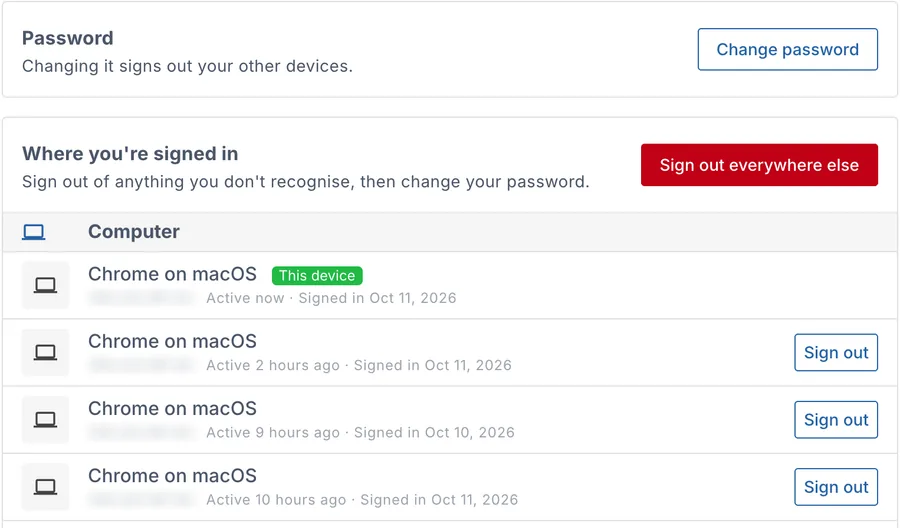
Where you're signed in lists every browser signed in to your account, grouped by Computer, Phone and Tablet. Each shows the browser, its address, when it was last active and when it signed in. This device marks the one you are using. A browser signed in without Keep me signed in shows until the browser closes.
- Sign out signs out that browser. Its open tabs sign out at once.
- Sign out everywhere else signs out every browser except this one: Your other devices were signed out.
If you don't recognise one, sign it out, then change your password.
To sign out of this browser, open the account menu and click Logout.
Keep your account safe
- Use a long passphrase you don't use anywhere else.
- Untick Keep me signed in on this device on shared or public computers, and click Logout when you are done.
- Check Where you're signed in now and then. Sign out what you don't recognise.
- Keep your email up to date: codes and reset links go there. To change it, see Change your email. The new address must be confirmed with the link we send it.
Inspectors and homeowners
People outside your account sign in with an emailed code. They don't need a password:
- Inspectors open the review from the email, or go to landplan.io/inspector/sign-in. Open your report review asks for the email the review request was sent to. Click Email me a code, type the Review code and click Continue. The first time, About you asks for their name and agency. See Open a review as an inspector.
- Homeowners and other viewers of a shared map can click Sign in to mark up when the link allows mark-up. They type Your email, click Email me a code, type the 6-digit code and click Sign in. See Mark up a shared map.
These codes work for 10 minutes.
Trouble signing in
| Problem | What to do |
|---|---|
| The code email doesn't arrive | Check your spam folder, and that the email is the one you signed up with. Didn't get it? lets you send a new code after a short wait. We send at most 5 emails of one kind an hour: after that, wait before you ask again. |
| That code isn't right or has expired. | Codes work for 10 minutes. Use the code from the latest email, or ask for a new one. |
| Too many wrong codes | Ask for a new code. |
| You opened the link on another device | The link signs in the device you open it on. To sign in here, type the 6-digit code from the same email instead. |
| This link doesn't work any more | Links work once and only for a short time. Ask for a new one. |
| Too many attempts | Wait 5 minutes, or sign in with an emailed code. See Too many wrong passwords. |
| You no longer have the inbox | Contact us: we'll help you get back into your projects. |