
Notes on the print page
Notes are the words and marks you add to a printed map: a label next to the existing tank, a callout pointing at the well, an arrow, a measured dimension, or the general notes of the plan. They belong to the print page, so they are saved with the map and printed in its PDF. They show only in print mode, not on the map.
Page tools
In print mode, the page tools sit in a bar above the page.
| Tool | What it does |
|---|---|
| Select | Moves things on the page, and opens what you click. It is on until you pick another tool, and comes back when that tool is done. |
| Text | Adds words at the spot you click. |
| Arrow | Draws an arrow from the first spot you click to the second. |
| Callout | Adds words in a box, with a pointer to the spot you click. |
| Dimension | Draws a line with arrows at both ends, and writes its length along it. |
| Note box | Adds a box of general notes that you move and resize on the page. |
| Undo | Takes back the last change on the page: a note, a moved label, the paper, the legend and so on. |
On a phone the tools show as icons only.
Text and callouts
- Click Text or Callout in the page tools.
- Click the map where the text goes, or the spot the callout points at.
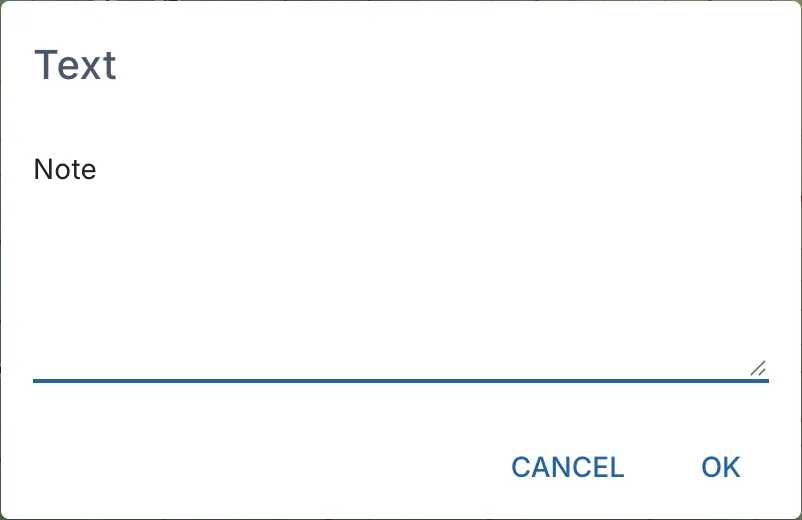
- Type the words in the Text window over Text or Note, then click OK.
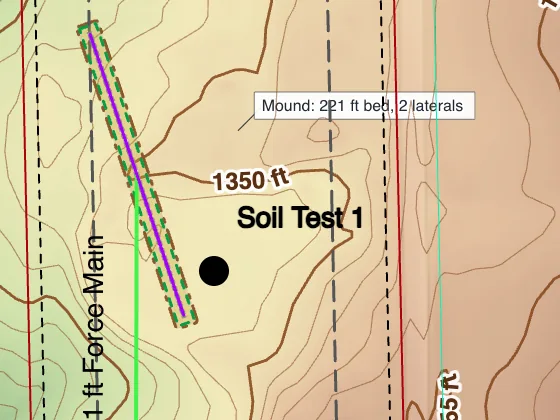
A callout's box starts beside the spot, with a pointer back to it. With Select on, drag the box and the end of the pointer separately, to where they read best. Drag a text to move it.
Arrows and dimensions
- Click Arrow or Dimension in the page tools.
- Click where the line starts, then where it ends.
A dimension writes its length along the line, in the map's units. To change an arrow or a dimension, remove it and draw it again.
Note box
Click Note box in the page tools, or + Notes under On the page in the Print panel. The box appears on the map. Click inside it and type.
- Move it. Drag it by its handle (the dots in its top left corner). It snaps to the frame and to the other items.
- Resize it. Drag any side or corner.
- Add the data sources. The folder icon adds a Data Sources: list under any words already in the box: where the data of each visible layer comes from (contours, elevation, basemap, parcel lines and so on) and the map projection.
- See-through. The drop icon sets how much of the map shows through the box, from Solid to Clear.
- Remove it. Click its ×. Its words are kept: turn it on again with + Notes and they are still there.
Change or remove a note
Click Select in the page tools, then click the note:
| Note | What a click does |
|---|---|
| Text | Opens the Text window. Change the words and click OK, or click Delete text. |
| Callout | Opens the Callout window. Change the words and click OK, or click Delete callout. |
| Arrow | Asks Remove this arrow? Click Remove. |
| Dimension | Asks Remove this dimension? Click Remove. |
In the Text and Callout windows, Ctrl+Enter saves the words. Clearing the words and clicking OK deletes the note too.
Undo in the page tools brings back a note you deleted, or puts back a note you moved.
Maps made with annotations
landplan.io used to have an Annotate tool for text shown in print. It is gone: notes do the same job. Annotations already on your maps are not lost. When you open a map that has them, each annotation becomes a Text note on the print page, at the same place, with the same words. Its size, colour, bold or italic, outline, background box and turn come with it. The font family stays standard. You can then change, move or remove the notes like any other.
This happens once per annotation, on every device: a note you change or remove does not come back.
Saved annotations still work: placing one from Tools > Basic tools > Saved features puts its words on the print page as a new Text note. See Annotations are now print notes.
Copying a map
When you make a new map in the Maps tab with Duplicate a map, tick Print notes (text, callouts, arrows, dimensions, note box) to copy the map's notes to the new map.