
Plan Reviews
A plan review sends a design report to an inspector. The inspector marks up the report in landplan.io, adds notes, and then approves it or asks for changes, with a stamp and a signature. You get the reviewed PDF back, and you can send the next version to the same inspector.
Opening in stages
Sending reports for review is opening to accounts in stages. If you don't see Send for review, it isn't on for your account yet. Inspectors can always open a review sent to them.
Send a report for review
You can send a report from four places:
- The Projects page. Click a project to open its panel. Under Reports and reviews, click Send for review.
- The report viewer. After you make the design report, click Send for review in the viewer's top bar.
- Details. On the last step, open the arrow beside the generate button and choose Generate and send for review.
- Smart design. When the report PDF is ready (The report PDF is ready), click Send for review beside Open.
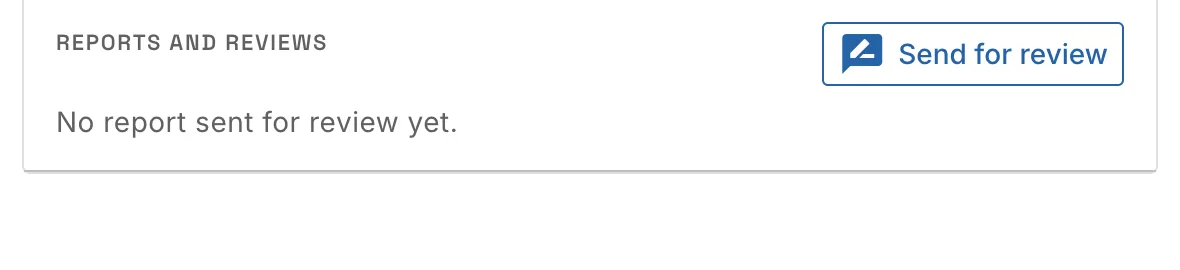
The Send for review window opens:
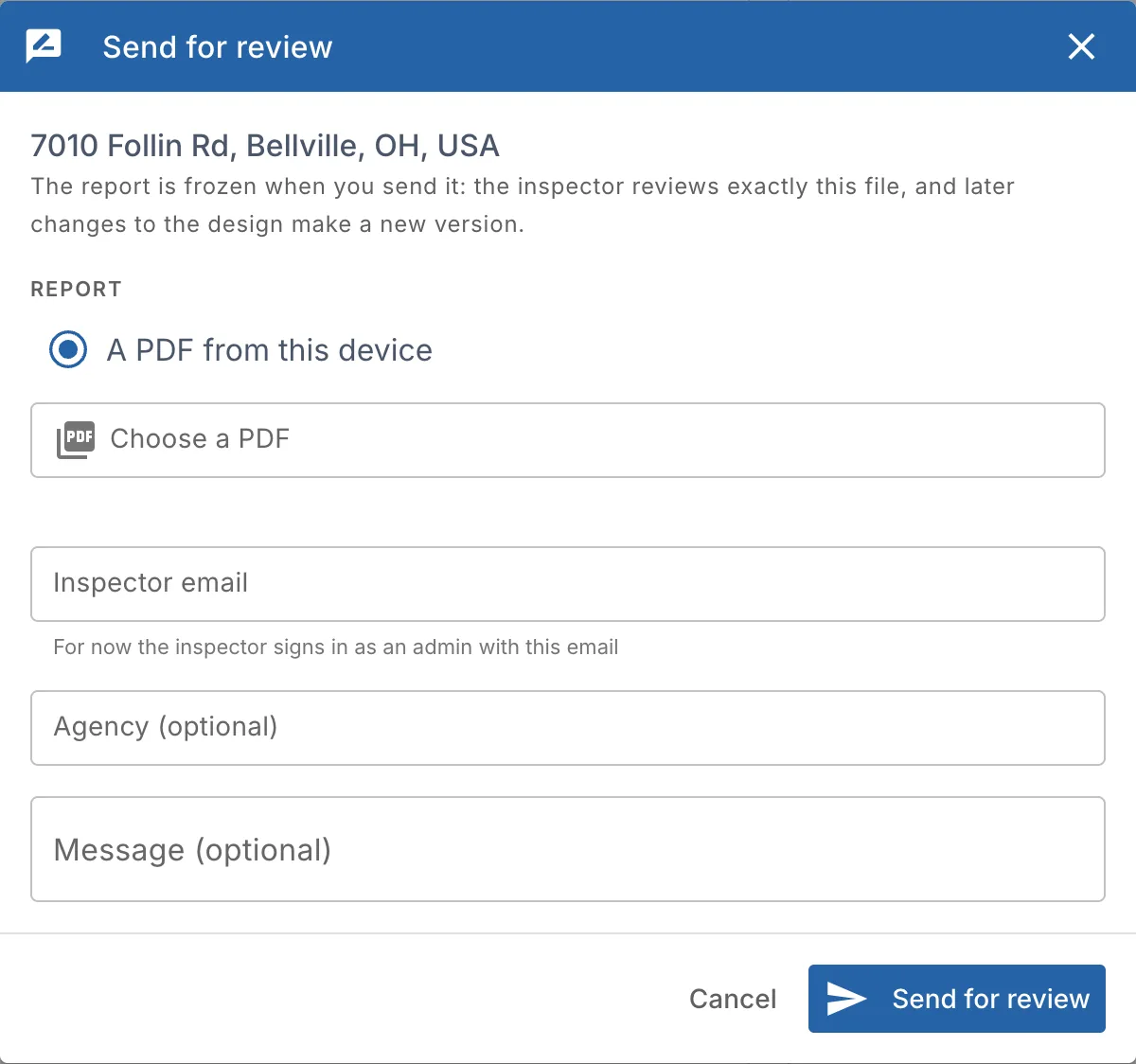
| Field | What to put |
|---|---|
| Report | The report you just generated (when you came from the viewer), A PDF from this device (Choose a PDF), or A report already sent for review. |
| Inspector email | The inspector's email. The last inspector you sent to is filled in for you. |
| Agency (optional) | For example County Health District. |
| Message (optional) | A note for the inspector. |
Click Send for review. The inspector gets an email with a link to the review.
The report is frozen when you send it: the inspector reviews exactly that file, and later changes to the design make a new version.
If a health department on landplan.io covers the project's township, the window says so and names its inspector. Leave Send to them on to send it to that inspector. See Districts.
The Reviews page
The Reviews page lists your reviews. Open it from the app menu (Work › Reviews), or go to landplan.io/reviews. A badge on the menu counts the reviews that need you.
It has two tabs:
| Tab | What's on it |
|---|---|
| To review | Reports sent to your email for review. The badge counts them. |
| Sent | Reports you sent. The badge counts the returned reviews you haven't opened yet. |
Each card shows the address, the report file, who sent it (or who you sent it to), the notes and must-fix count once it is reviewed, and a timeline: Sent, Opened and Reviewed, with dates. New and a dot mark a returned review you haven't opened. Click a card to open the review.
The status of a review:
| Status | Meaning |
|---|---|
| Sent | The inspector hasn't opened it yet. |
| In review | The inspector opened it. |
| Approved | The inspector approved the report. |
| Changes required | The inspector returned it with changes to make. |
| Withdrawn | You withdrew it. |
On the Projects page, the same status shows on the project's row and in its panel.
Follow a review you sent
Open a review from Sent, or from Reports and reviews in the project's panel. The page shows the report with the inspector's markups, read-only.
- The top shows the file, its sheet count, who it went to and a short SHA-256 code of the frozen file, with the timeline.
- Withdraw, while the review is open, takes it back. The inspector can no longer open or sign it.
- Reviewed PDF opens the report with the markups, the notes, the stamp and the signature, once it is returned.
When the inspector returns it, a banner shows Approved or Changes required, who signed it, their remarks and the number of notes, for example 3 notes · 1 must fix.
Send the next version
To answer a returned review, change the design, make the report again, and click Revise and send next version on the review (or in the project's panel). The window is titled Send next version: it goes to the same inspector, linked to the review before, so the inspector can check each of their earlier notes.
Open a review as an inspector
An inspector doesn't need a landplan.io password. The email you get has a link to the review.
- The link opens Open your report review. Enter the email the review request was sent to and click Email me a code.
- Enter the 6-digit code from the email, then Continue.
- The first time, fill in About you: Full name, Agency or health department, Title and Registration or license no. (both optional). Tick the box to agree to sign your review decisions electronically, then click Open my reviews.
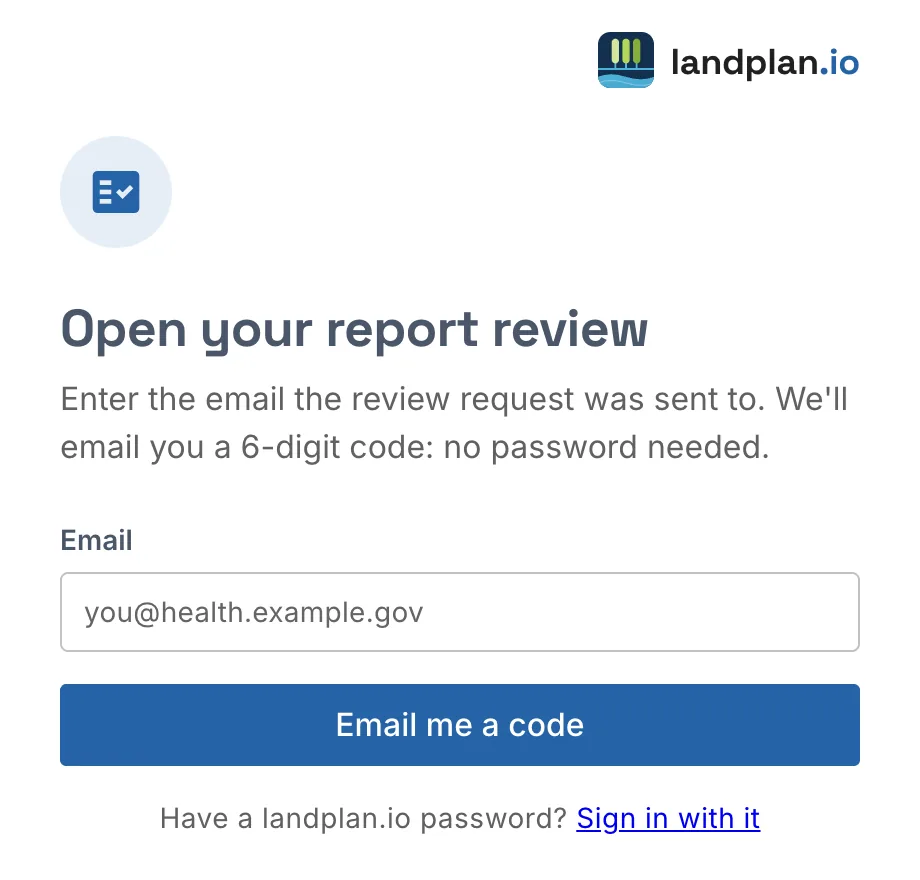
Have a landplan.io password? Click Sign in with it instead. Your details are kept on your Inspector profile (landplan.io/inspector/profile). Each review's signing form starts from them; reviews you already signed keep what they show.
Mark up the report
A review has two steps, shown at the top: 1. Mark up and 2. Decision. Your work saves as a draft as you go. The top bar says Draft saved, Saving draft… or Draft not saved (with Retry).
The sheets of the report are listed on the left, with a count of the notes on each. The markup tools sit above the report:
| Tool | What it does |
|---|---|
| Select | Select a markup to edit its note, or drag it. |
| Move | Drag a markup to move it. |
| Note | Click where the note applies. |
| Cloud | Drag around what needs changing. |
| Arrow | Drag from the note to the spot. |
| Pen | Draw freehand. |
| Highlight | Drag over text to highlight it. |
| Erase | Click a markup to remove it. |
Pick a colour (red, amber or blue) with the swatches beside the tools, and zoom with the zoom buttons at the right.
Each markup gets a numbered note in the Notes list on the right. For each one:
- Type what to change (Explain what to change).
- Pick a Category: Setback, Sizing, Missing info, Soil, Drafting or Other.
- Pick a Severity: Must fix or Suggestion.
On a next version, From the previous review lists your earlier notes. Mark each one Resolved or Still open in this version. Previous shows the earlier markups on the report, dashed.
Click Continue to decision when you are done.
Decide and sign
On 2. Decision:
- Pick the decision:
- Approve: stamped approved. Open must-fix notes become conditions.
- Changes required: not approved. The designer revises and sends again.
- Write your Remarks to the designer.
- Check Notes included. On a next version, a warning tells you about earlier notes not checked yet.
- Under Stamp and signature, check your Full name, Title, Agency and Registration or license no., then sign: Draw on the pad, or Type your name.
- Tick I reviewed … and I'm signing this decision electronically.
- Click Approve and send or Send changes required.
Back to markup returns to the report. The designer gets the decision and the reviewed PDF, and the review is closed.
Reviews in a health department
When a health department runs an agency organization on landplan.io, the reports sent for its townships come to the inspector of the township's district. Its Reviews inbox lists them all. See Districts and Reviews.