
Profile and preferences
Your profile is who you are on landplan.io: your name, company and contact details go on your plans, estimates and jobs. Your preferences are how the app works for you: the units you see, light or dark, and the products and prices your designs start with.
Edit your profile
- Open the account menu (your photo at the top right).
- Click Edit profile. Your profile opens in the menu.
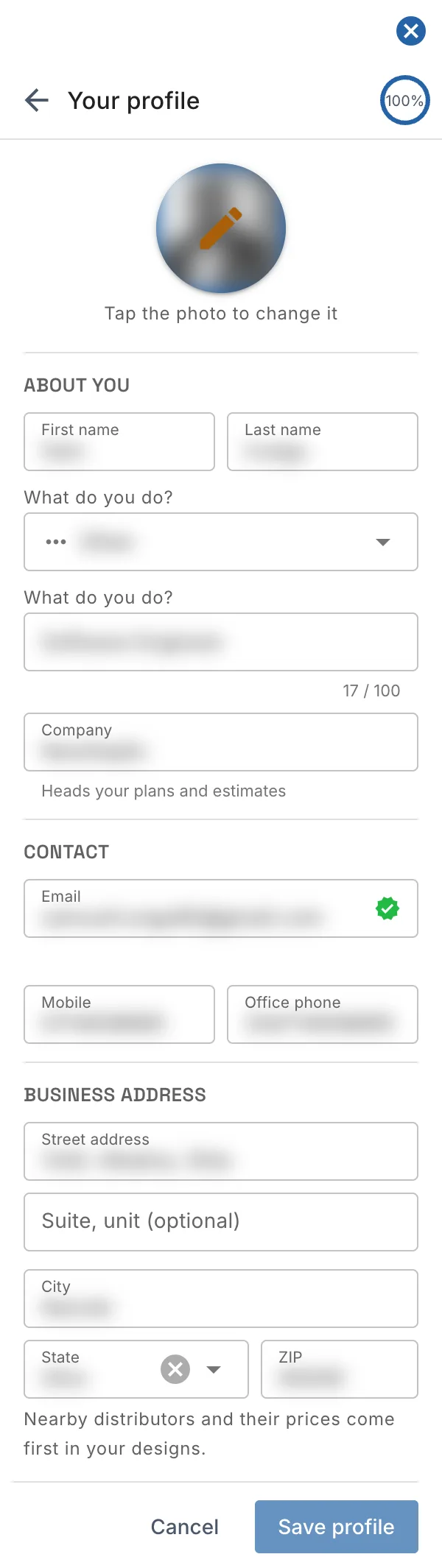
- Change what you need, then click Save profile. Cancel or the back arrow (Back to the menu) leaves it without saving.
| Section | Fields |
|---|---|
| About you | First name, Last name, What do you do? (your profession; pick Other to type it) and Company. The company heads your plans and estimates. |
| Contact | Email, Mobile and Office phone. A green tick shows your email is confirmed. |
| Business address | Street address, Suite, unit (optional), City, State and ZIP. Nearby distributors and their prices come first in your designs. |
Save profile is on only when something has changed. The ring at the top right shows how complete your profile is.
To change your name or company for one print only, type it on the print page's title block. See Print settings and page items. The contact block your plans print is set in Design setup.
Finish your profile
While your profile isn't complete, the account menu shows Your profile is …% there under your photo, with the next two steps. Click Finish my profile to open the profile, or Not now to hide the card on this browser for two weeks. In the profile, To finish your profile lists what is left, and each step is ticked as you fill it in.
| Step | Why it helps |
|---|---|
| Add a photo | People you work with see it on messages and jobs. |
| Add your full name | It goes on your plans and estimates. |
| Add a phone number | So clients and inspectors can reach you. |
| Add your company | Your company name heads your plans. |
| Tell us what you do | We suggest the right first steps for your work. |
| Add your business address | Nearby distributors and prices come first. |
| Confirm your email | Keeps your account safe and your receipts arriving. |
Profile photo
Click your photo at the top of the account menu, or in the profile (Tap the photo to change it), to add or change it. Without a photo, a person icon shows instead.
Change your email
Type the new address in Email and click Save profile. The hint says We'll send a link to the new address; it changes once you open it. Your email stays the same until you open the link sent to the new address.
Until your email is confirmed, the hint says Not confirmed yet: check your inbox for our link, and the account menu has Confirm your email to send the link again.
Sign-in and security
Open the account menu, then Account > Sign-in & security.
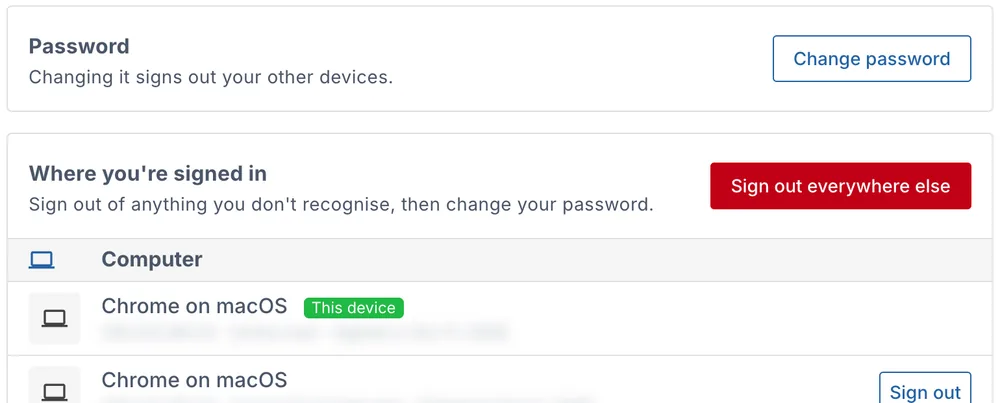
- Change password sets a new one, and signs out your other devices. If you sign in with Google or Facebook, it reads Set a password.
- Where you're signed in lists the browsers signed in to your account. Sign out signs out one, Sign out everywhere else all but this one.
See Signing in and account security for every way to sign in, a forgotten password and how to keep your account safe.
Units
Each project shows lengths, elevations, areas, volumes, flows and loading rates in US units, Metric or your own Custom mix. Only how values are shown and typed changes, so switching never changes a design.
To change them, click the units at the bottom right of the map (for example US units). The Units window opens.
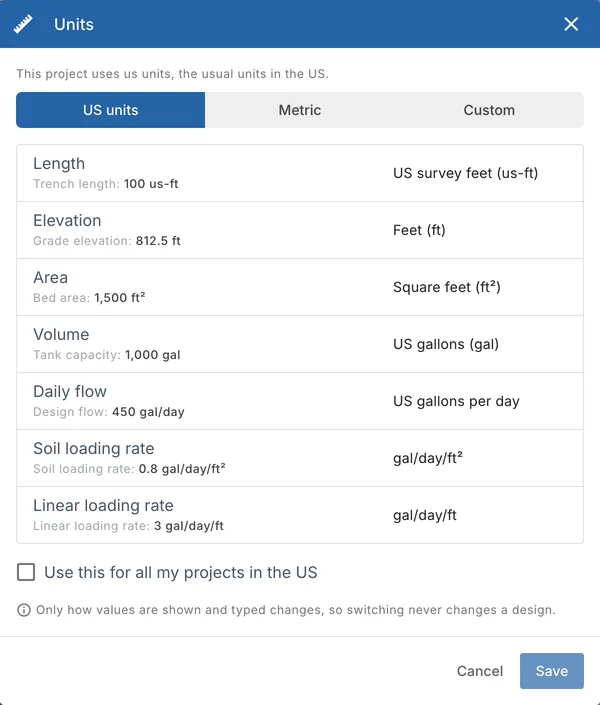
- Pick US units, Metric or Custom. With Custom, choose the unit of each row. Each row shows a sample value in the unit, such as Trench length: 100 ft.
- Tick Use this for all my projects in the US (or Canada) to make it your default for the country. Leave it unticked to change this project only.
- Click Save.
A project with its own units has a Use my … default for this project button to go back to your default for the country.
The first time you open a project in Canada, Choose your units asks you once: Metric or US units. Tick Remember this for my projects in Canada to keep the answer, or click Decide later.
Dark mode
Click the moon in the top bar, or Dark mode in the account menu's Help & settings, to switch between the light and the dark look. On the map, the toolbar has its own dark mode button (on a phone, Dark mode in the ⋮ menu).
Design setup
The products, options and prices your new designs start with are in Account > Design setup: your systems and products, your main distributor, your plan contact block and your prices. See Design setup.
Fill in your profile info
A new account is asked to Fill in your profile info before it starts: First name, Last name, Email, Phone number, Home address, Profession and Company (the fields marked * are needed). Click Save Profile to carry on. You can change all of it later in Edit profile.
The same form is also a page of its own. It is headed Finish your profile while a field marked * is empty, and Your profile once they are all in. Back at the top returns to the page you came from.