
Soil test list
The soil test list is a table of the project's soil tests at the bottom of the map. From it you add, edit, copy and delete soil tests, edit their horizons, and create the soil report.
Open the soil test list
Click Soil test list in the Soil group of the Tools drawer. Click it again to hide the list. You can also close it with the close button at its top right, or press Esc.
Drag the blue bar at the top of the list up or down to make it taller or shorter. The list and the Soil Field Log share the space: opening one closes the other.
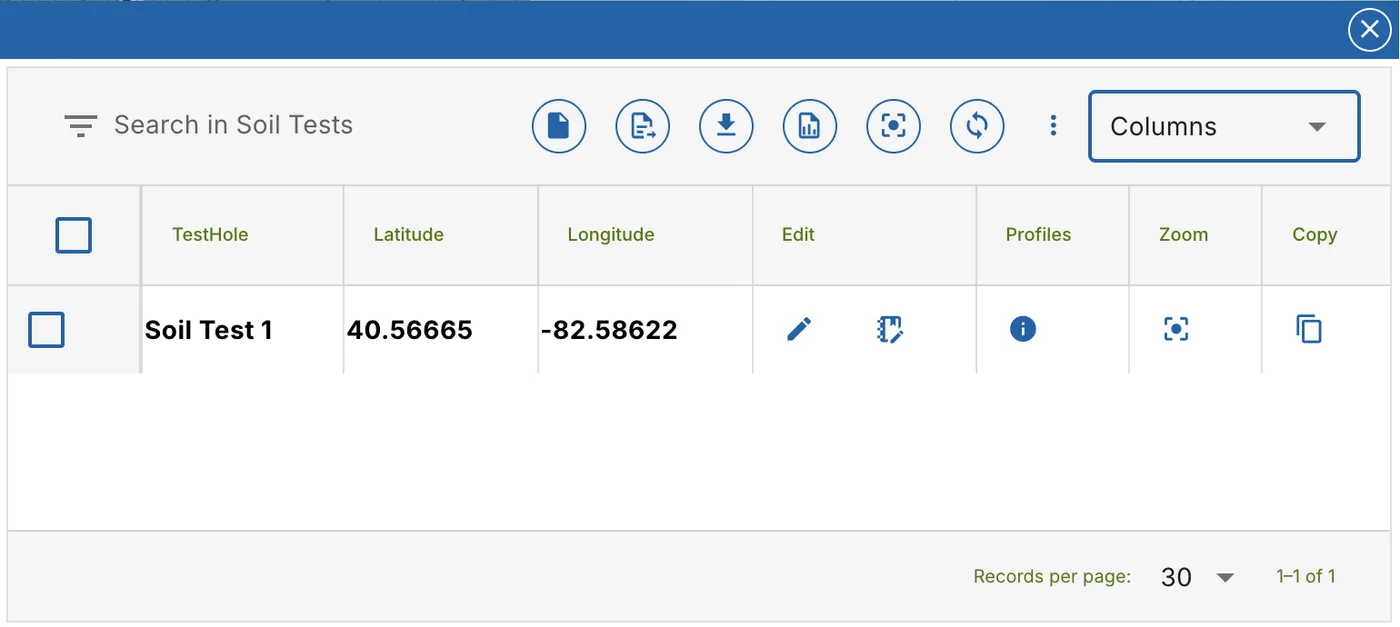
The toolbar
| Button | What it does |
|---|---|
| Search in Soil Tests | Type to show only the soil tests that match. |
| Add a soil test (page) | Opens your state's soil test form for a new test, named with the next number. See Soil test forms. |
| Import soil tests from a soil report (PDF) | Reads the soil tests from an evaluator's report. See Import from a soil report. |
| Download | Downloads the soil tests as a CSV file. With tests ticked, it downloads only those. |
| Create a soil report (PDF) | Fills in the state's soil form for each test. See Create a soil report. |
| Zoom the map to all soil tests | Fits the map to every soil test. |
| Reload the soil tests | Reads the soil tests from the server again. |
| Delete | Shown when tests are ticked. Deletes them, after you confirm. |
| ⋮ (More soil test tools) | Try the new Soil Field Log (beta), when the beta is on for your account. |
| Columns | Pick the columns to show. |
Tick a row's box to select it, or the box in the header to select every row.
Columns
The list always shows the TestHole, its Latitude and Longitude, and the buttons Edit, Profiles, Zoom and Copy. Add more from Columns. The list remembers your choice in this browser.
| Column | What it shows |
|---|---|
| Property Address | The project's address. |
| TestHole Messages | Notes about the test hole. |
| Id | The soil test's id. |
| Most Limiting Condition | The shallowest limiting condition. |
| Number Of Soil Profiles | How many horizons are logged. |
| System Generated and User Generated Llr, Pilr, Silr | The loading rates worked out by the soil analysis, and the ones entered for the test: linear (Llr), pretreated effluent (Pilr) and septic effluent (Silr). |
| Loading Rates | The loading rates in one column, marked Entered or From the soil analysis, or None yet. |
Click a column's title to sort by it. A test logged in the Soil Field Log has a Field Log badge next to its name.
Edit a soil test
Click Edit (the pencil) on a row. Your state's soil test form opens on that test. See Soil test forms.
With the Soil Field Log beta on, the row also has Open in Field Log (beta). See Soil Field Log.
Soil profiles
Click Profiles (the i button) on a row to see the test hole's horizons, the Soil Profile of the test hole.
The table groups the columns as on the paper form: Soil Profile (Horizon, Start Depth, End Depth), Estimating Soil Saturation (the Munsell colors of the Matrix, the concentrations and the depletions) and Estimating Soil Permeability (Class, Clay, Fragment Percent, Grade, Size, Type, Consistence, Other). The profile is also drawn to scale.
| To | Do this |
|---|---|
| Add a horizon | Click Create a Soil Horizon. |
| Change a horizon | Click Edit on its row. |
| See changes made elsewhere | Click Refresh soil horizons. |
| Download the horizons | Click the download button in the title bar (Download Soil Profile (csv)). |
The soil horizon window
Create a Soil Horizon and Edit open the horizon's form. Its fields come from your state's configuration, usually:
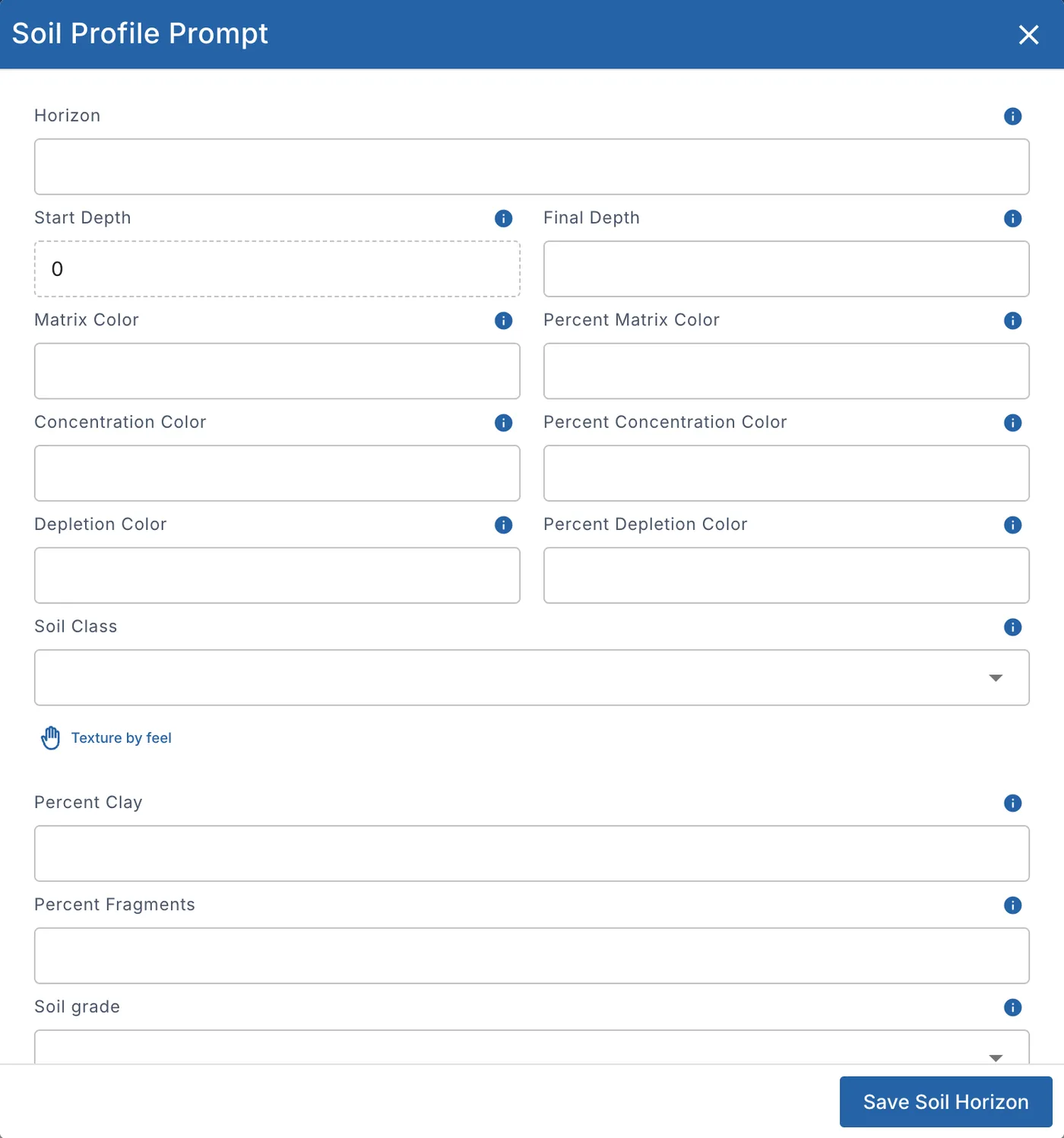
- Horizon, Start Depth and Final Depth. A new horizon starts where the last one ends.
- Matrix Color, Concentration Color and Depletion Color, each with its percent.
- Soil Class, with Texture by feel to find it from a few questions.
- Percent Clay and Percent Fragments.
- Soil grade, Soil size, Soil type and Soil consistence.
- Other notes.
- Linear Loading Rate, Infiltrative Loading Rate - Septic Effluent and Infiltrative Loading Rate - Pretreated Effluent.
The loading rates fill in from your state's table once the class, grade and type are set. A rate you typed yourself is kept. Each field's i button says what it is for.
Click Save Soil Horizon. Delete Soil Horizon deletes a saved one.
Zoom to a soil test
Click Zoom (the target) on a row to centre the map on that soil test. Zoom the map to all soil tests, in the toolbar, fits all of them.
Copy a soil test
Click Copy on a row to make a new soil test from it, with all its data and horizons. Use it when a second hole has the same soil.
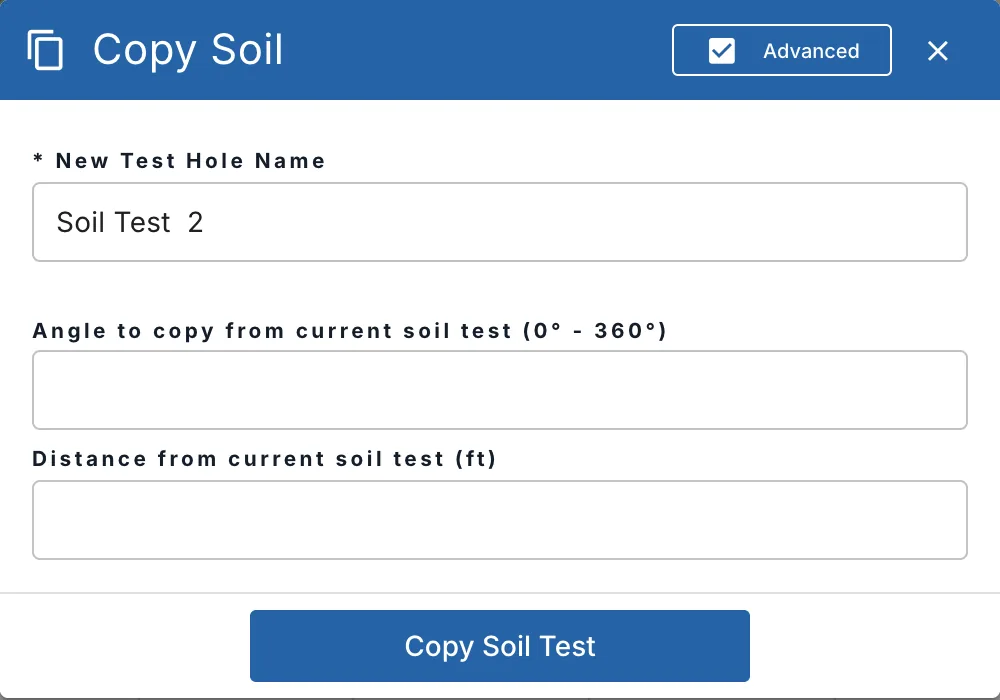
- Type the New Test Hole Name. The next number is filled in.
- To place the copy yourself, click Advanced, then type the Angle to copy from current soil test (0° - 360°) and the Distance from current soil test (ft). Without them, the copy goes 50 ft away in a random direction.
- Click Copy Soil Test.
Then move the copy to where the hole really is, and change what differs.
Create a soil report
Click Create a soil report (PDF) in the toolbar. The Create Soil Report window fills in a soil form with one copy for each soil test. Tick tests in the list first to put only those in the report.
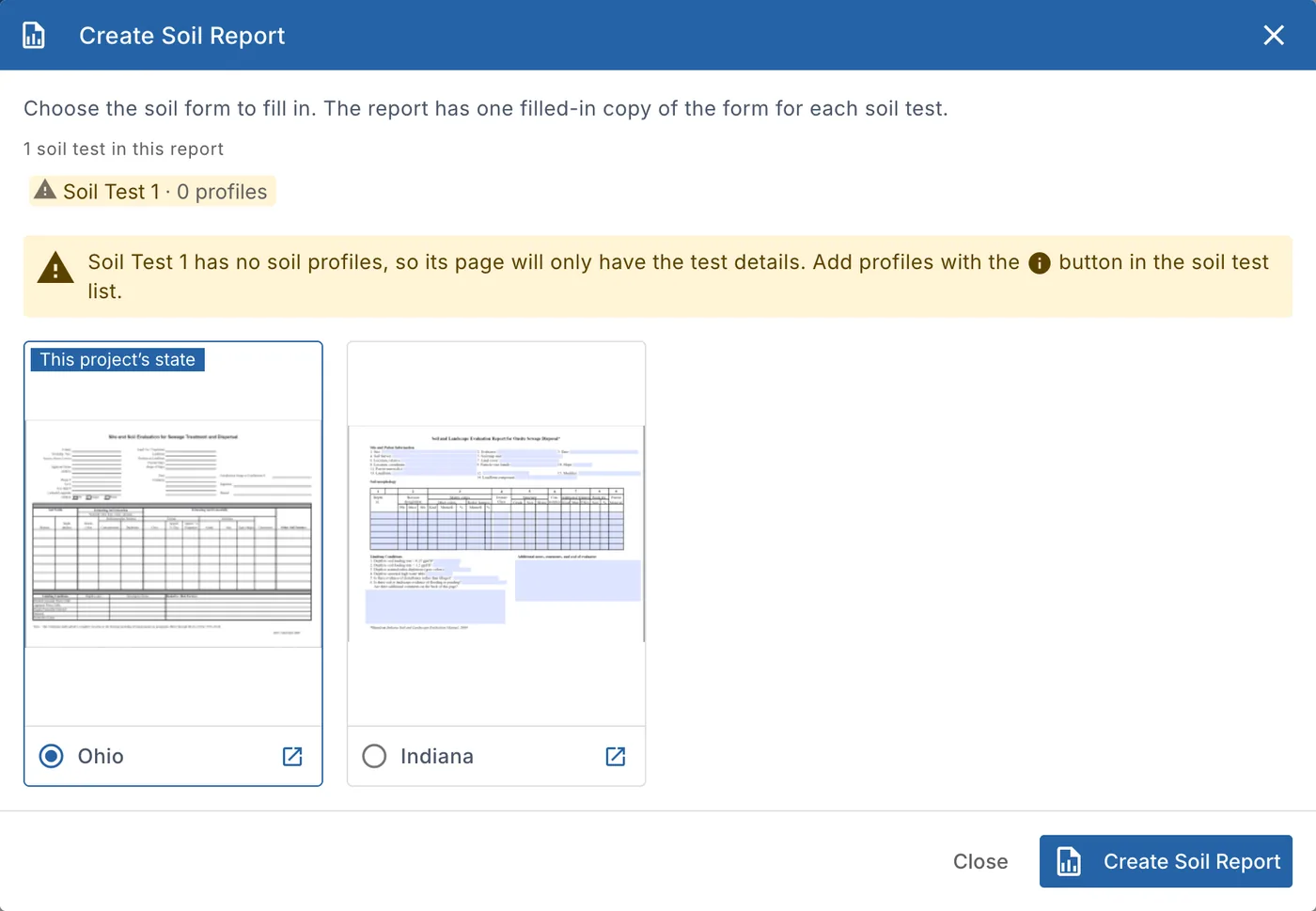
- Check the soil tests in the report. A test without soil profiles is marked, and its page will only have the test's details. Add its horizons first with Profiles.
- Choose the soil form. The one for the project's state is marked This project's state. The open button on a form shows the blank form.
- Click Create Soil Report. The report opens in the document viewer, to download or print.
If no form is set up for your state yet, the window says so. Contact us to add it.
Import from a soil report
Click Import soil tests from a soil report (PDF) to read the soil tests from the evaluator's report instead of typing them.
- Pick the report under Soil report: a PDF, or a photo or scan (JPEG or PNG). Ohio Site and Soil Evaluation and North Carolina Soil/Site Evaluation forms are read by their layout, other reports by keywords.
- Click Read report. The report is kept with the project.
- Check each test against the report, shown beside it: its horizons and its limiting conditions. Change any value, Add horizon, Add test, or Remove one.
- Click Save this soil test, or Save with the number of tests, for example Save 2 soil tests.
Another report starts again with another file.
Soil reports kept with this project lists the reports read before. Open shows one, and Read again reads it again.
Delete soil tests
Tick the tests and click Delete in the toolbar. Confirm Soil Test Deletion asks first: click Yes, Delete the Soil Test (or Soil Tests) to delete them.
You can also delete a soil test on the map: select it and click Delete in Edit tools. See Soil tests and test pits.