
Account menu
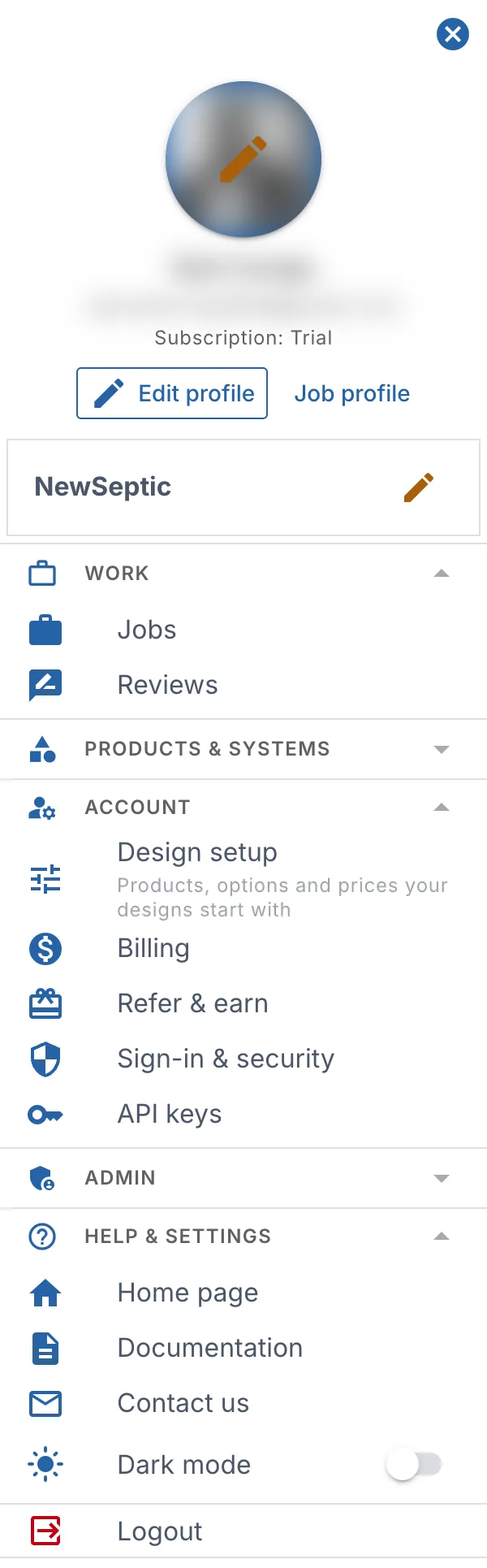
The account menu holds everything about you and your account: your profile, your company, billing, security and help. It also has links to the pages you don't reach from the map, such as Jobs and the product pages.
Open the account menu
Click your photo (or the person icon) at the top right of any page. On the map it is at the right end of the toolbar. The menu opens as a panel on the right. Click Close menu (the ⊗ at its top) or anywhere outside it to close it.
Small badges on your photo flag things to look at:
- A yellow dot: your email isn't confirmed yet.
- A lime dot: your plan is paused (it ended). Your projects open view only until you reactivate.
The links are in groups: Work, Products & systems, Account and Help & settings. Click a group's name to open or close it. landplan.io remembers which groups you keep open. A closed group still shows a badge when one of its links has something for you, such as setting a password.
Logout sits below the groups, so it is always in view. If the map has changes that aren't saved, you are asked about them first.
Find anything
To jump straight to a page, a setting, one of your projects or a help page, press Ctrl K (⌘K on a Mac), or click Search at the top of the account menu or in the app bar. Type a few letters, for example payo for the payout pages or password for Sign-in & security. Use ↑ and ↓ to choose a result, Enter to open it and Esc to close the search. On the map, Ctrl K searches the map instead; use the Search button there.
An address that doesn't exist shows That page isn't here, with links to your projects, your profile and account, help, and the same search.
Your profile in the menu
The top of the menu shows your photo, your name, your email and, just above Edit profile, a badge with your plan.
| Item | What it does |
|---|---|
| Your photo | Click it to add or change your profile photo. |
| Plan badge | Your plan in green (for example Pro · annual), or the days left in your free trial (Trial · 3 days left, Trial · ends today): teal at the start, turning yellow by its last day. Plan paused (or Trial ended) once your plan or trial has ended. Click it to open Billing, or Choose your plan while you have no plan. |
| Edit profile | Opens your profile in the menu: name, what you do, company, email, phones and business address. See Profile and preferences. |
| Job profile (contractors) or Public profile | Opens the page other members see, with your company and your jobs. |
| Finish my profile | Shows while your profile is not complete: how far along it is, the next two steps and why each helps. Not now hides it for two weeks. |
| Pick up where you left off | Shows when your plan has ended: what the yearly plan costs and saves, and Reactivate yearly (or Start Pro yearly after a trial). Opens Reactivate Pro. See Billing. |
| Confirm your email | Shows until your email is confirmed. Sends the confirmation link again. |
Under your profile is your company:
- With a company on your account, its name shows. Click it to open the company's page, or the pencil to edit it.
- Without one, contractors see Add my company. See Your company.
Refer & earn
While the referral program is open, every member sees a gold Refer & earn card at the top of the menu, above the groups, with what you can earn. It opens your referral link, invites and earnings. A badge counts the people who signed up or paid, and the commissions earned, since you last opened it. It is hidden while you are on it. See Referral program.
Work
| Link | Who sees it | What it opens |
|---|---|---|
| Projects | Contractors | Your projects list. It is hidden while you are on it. |
| Property Map | Contractors, from a project page | The map of the project you are looking at. |
| Jobs | Everyone | Jobs you posted, jobs sent to you and the open jobs. See Submitting a job. |
Products and systems
| Link | What it opens |
|---|---|
| Products | Search septic products: tanks, pumps, pipe, treatment units and more. See Products and distributors. |
| Product map | Where products are sold, on a map. |
| Companies map | Manufacturers, distributors, installers and service companies, on a map. |
| My inventory | Your company's listings, prices and stock (when you manage a company). |
| Septic systems map | Contractors: septic systems on a map. |
Account
| Link | Who sees it | What it opens |
|---|---|---|
| Design setup | Contractors | The products, options and prices your new designs start with. See Design setup. |
| Billing | Contractors | Your plan, payment methods, receipts, project credits and job payouts. See Billing. |
| Sign-in & security | Everyone | Your password and where you are signed in. See Signing in and account security. |
| API keys | Everyone | Keys for the partner API, when landplan.io has set up API access for you. The page links to the API documentation. |
| Your time in the app | Everyone | How long you've worked in landplan.io each day and which tools you used. See Your time in the app. |
Sign-in & security shows Set password when you got back into your account with a reset link and kept your old password.
Your time in the app
Your time in the app shows how long you've worked in landplan.io and with which tools, over the last 7, 30 or 90 days:
- Active time: the time you spent working. A tab left open without input for 5 minutes, or hidden behind another tab, isn't counted; it shows apart as idle time. Two tabs open at once count once.
- Days in the app, your active time on a working day on average, and your sessions.
- Active time per day: a bar per day. Point at a bar, or use the arrow keys, for that day's active and idle time. Table shows the same as a table.
- Your tools: your tools by time, or by how many times you opened them.
Days run from midnight to midnight UTC. Today is counted again every 15 minutes, so the last few minutes show a little later. Only you and landplan.io support see these figures. landplan.io records which tools and projects you open and for how long, never what you draw or design.
Help and settings
| Link | What it does |
|---|---|
| Home page | Opens the landplan.io home page. |
| Documentation | Opens these docs in a new tab. |
| Contact us | Opens the contact form. See Contact us. |
| Dark mode | Switches between the light and the dark look. The moon button in the top bar does the same. |
On the map, the toolbar's Help button opens help on the tool you are using. See Map help.
Contact us
Contact us (in Help & settings) opens a form that sends your message to the landplan.io team. We usually reply within one business day. Help with billing on the Billing page opens the same form.
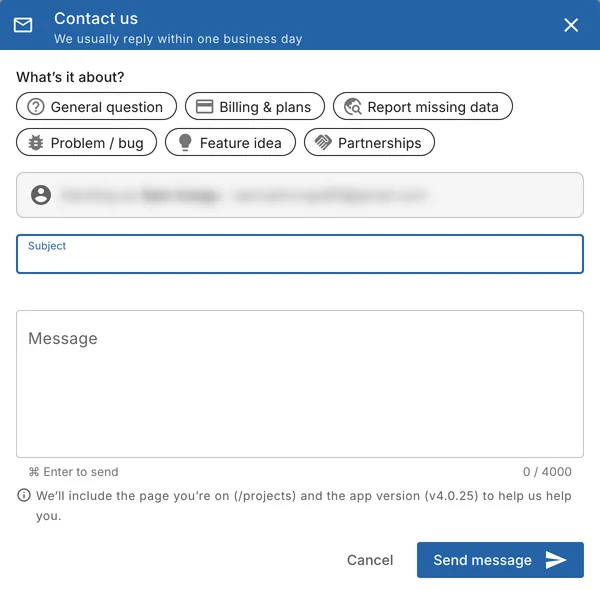
- Under What's it about?, pick a topic: General question, Billing & plans, Report missing data, Problem / bug, Feature idea or Partnerships. The topic fills in a subject and a hint for the message.
- Check the Subject and write your Message (up to 4,000 characters).
- Click Send message, or press Ctrl+Enter (⌘+Enter on a Mac).
When you are signed in, the form says who it is Sending as, and the reply goes to your account's email. Signed out, type Your email. The message also tells us the page you were on and the app version, so we can help faster.
When it is sent you see Message sent. Click Send another or Done. If you close the form with a message you haven't sent, you are asked first.
If the message can't be sent, the form says so: click Try again, or use the email link it shows. Under the form, Other ways to reach us has our phone number and email.
Workspaces
If you belong to an organization, the top bar shows a workspace button next to the moon, for example Personal. Click it to switch between your personal projects and an organization's projects. The menu also has Organization settings, Create organization and Leave. See Organization.