
Septic Tools Overview
The septic design tools draw an onsite wastewater system on the map: the house, the tanks, the absorption area and the pipes that join them. Each part is a map feature with its own properties, so Details (the design calculator) can size the system and make the report PDF from what you drew.
You can draw every part yourself with these tools, or let Smart design or Auto design place them for you (see Smart Design and Auto Design). Either way, you can change any part afterwards with the same tools.
Open the septic tools
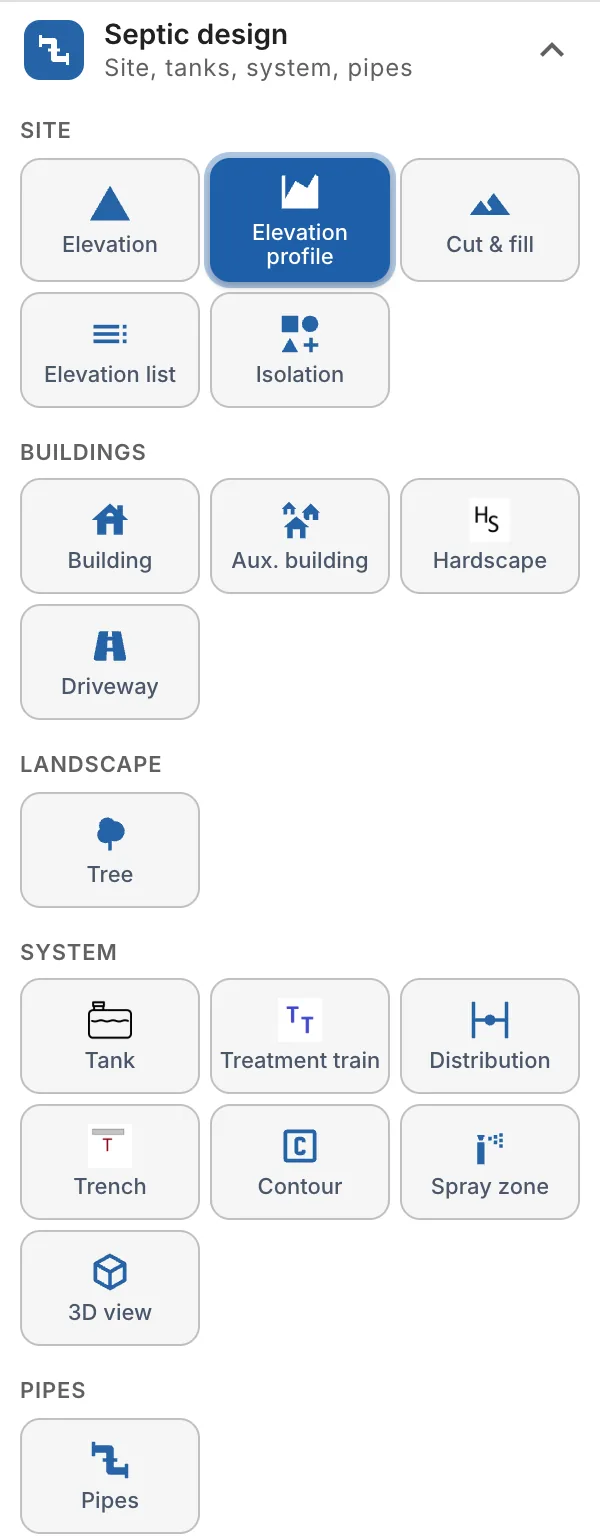
Click Tools in the bar at the top of the map, then open Septic design (Site, tanks, system, pipes). The tools are in four groups. The landscape tools (Tree, Shrub, Hedge, Planting bed, Lawn, Walkway, Fence and Retaining wall) have their own section below it, Landscape (see Site features).
| Group | Tools |
|---|---|
| Site | Elevation, Discharge point, Elevation profile, Cut & fill, Elevation list, Isolation, Right-of-way |
| Buildings | Building (the house, with its flow), Aux. building, Hardscape, Driveway |
| System | Tank, Treatment train, Distribution, Trench, Contour, Spray zone, 3D view and Drip design |
| Pipes | Pipes and Fittings |
Hover over a tile to read what it does. A tile that is on is filled in blue: click it again to stop. The first three times you use a tool, a tips card opens by itself with how to use it. Click Next tip to read on, or Turn tips off.
Some tiles only show when they can be used: Contour once a trench line or a bed is on the map.
The order to draw a septic system
Draw the parts in the order the wastewater flows. Each tool can then snap to the part before it and pick up its flow.
- The site. Mark what the system has to keep away from with Isolation: wells, streams, easements. Add auxiliary buildings, hardscape, driveways and trees.
- The house. Draw it with Building and set its bedrooms or flow. Every size in the design comes from this flow.
- The sewer main. With Pipes > Sewer Main, start at the house and end where the first tank goes.
- The tanks. Add them one at a time with Tank, or a whole row with Treatment train.
- The absorption area. For a trench, mound, low pressure pipe or drip system, draw the trench line with Trench and build the system with Contour. For a spray system, use Spray zone.
- The distribution. Place the distribution method (a distribution box, a valve, headworks...) and join the tanks to it and to the field with Distribution Main, Force Main and Manifold pipes.
- Check and report. Open Details to check the sizes, the elevations and the pump, and to make the report PDF (see Details & Report PDF). Use print mode for a one-page site plan.
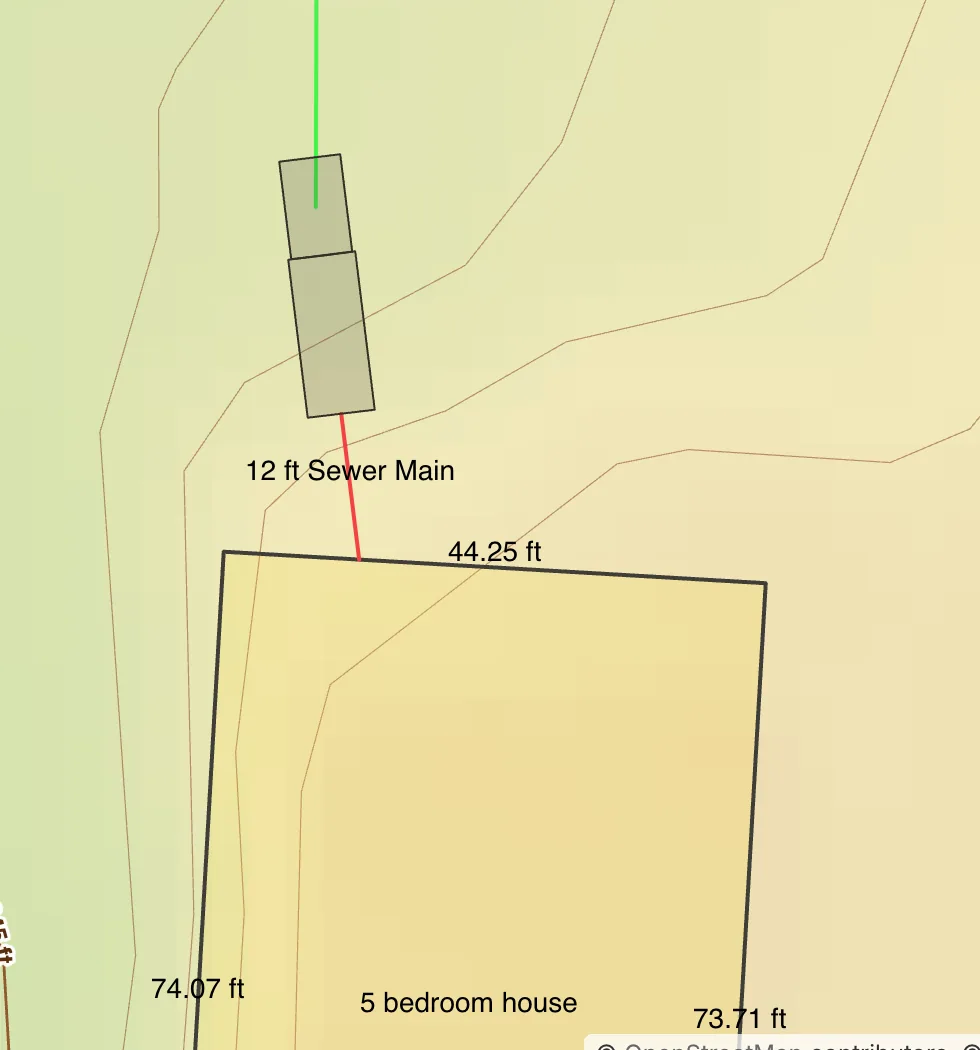
With a dose tank, the pump pushes the effluent along a force main (and manifolds) to the distribution method. See Dose Tank & Floats and Pressure & Pump.
Let the guide draw it
Smart design places each of these parts for you, one step at a time, and Auto design drafts them all in one press. See Smart Design and Auto Design.
The 3D view
The 3D view shows the drawn systems in three dimensions, on the ground they sit on: the trenches or the bed, the media, the sand, the cover soil, the pipes, the tanks and the buildings. Use it to check the system against the slope before you go to the site.
The 3D view tile is in the System group. With no system drawn yet, the view says so. Click it to open the view at the bottom of the map, and click it again (or Close the 3D view) to close it.
- System picks the system to show, or All systems.
- The view buttons turn the view: Fit (the whole system from downslope), Plan (from above), Along the trenches (the cross section) and Across the trenches (their lengths).
- Vertical exaggeration (1×, 2× or 5×) stretches the heights, to make a gentle slope easier to see.
- Layers and ground shows or hides the Ground, Cover soil, Sand, Media, Pipes and Tanks, d-box and buildings. Ground from elevations shapes the ground from the site's elevations; turn it off for a plane at the design slope.
The chip next to System says where the ground comes from: Ground: elevations, or Ground: design slope when there are no elevations.
A hierarchy of accuracy
landplan.io starts every design from the best public data, and you replace it with better data as you get it. This is how surveyors work: plan from the GIS before the site visit, then measure on site.
- Elevations come from the elevation data of the site until you enter your own. Override any of them with a measured value, or add level readings.
- Lengths and positions come from what you draw. Import GPS points from the field with Importing GPS Points and draw through them.
Treat every value from public data as something to check in the field.
Where the map data comes from
- Parcels come from local government agencies and are provided as is.
- Contours are made from public elevation data: USGS 3DEP lidar in the United States and NRCan in Canada. To make them for a site, open Layers > Elevation and click Load elevation for this site.
- Streams and water bodies come from the USGS National Hydrography Dataset in the United States. They are in the Hydro folder of Layers.