
Cost Estimate
landplan.io prices the design as you draw it. Each tank, pipe, pump and bed on the map carries a price, and the cost estimate adds them up with your labor, fees and terms. You can see early on whether a layout costs too much.
Video coming soon: Cost estimate. Until then, follow the steps on this page.
Open the cost estimate
From the map. Click Details in the bar at the top of the map, then Report, the last step. The cost estimate is under the report pages. Click Cost estimate under the step bar to jump to it. See Details and the Report PDF.
On the map. The Estimate chip at the top right of the map shows the total, for example Estimate $4,471. Click it for the products, labor and fees, the main lines (septic tank, dose tank, pressure network, bed or trenches, mains) with their distributors, and the parts priced without a nearby distributor (4 in PVC SDR 35 pipe: generic price). It follows the map a few seconds after you stop drawing or editing. The products are the map as drawn; the labor, fees and delivery are the ones saved in the estimate. Open in Details opens the cost estimate below, and Download estimate PDF makes the PDF from what the chip shows. The chip isn't shown on a phone, in print mode or on a map you can only view.
On a part. Select a tank, pump or pipe on the map: its properties show the product's price, or No price yet. A price you change there is the one the estimate uses.
With Auto design. With Make the report PDF when it's done on, tick Include the cost estimate (Include the cost estimate in the report while it runs or once it is done), and the estimate comes with the report.
The estimate follows the design: move or resize a part on the map, open the Report step again, and the totals change.
Where the prices come from
- Products come from the parts on the map. A tank or a pump has the product's price. A pipe has a price per unit and its length. Bed media and soil cover are priced by the volume the design needs.
- Your own prices. When you change a price in a part's properties on the map, you can keep it as your default. It goes to your price book, and new designs use it.
- Labor, fees and terms come from the labor rates, fees and terms set up for your area.
Cost estimate
The top of the estimate shows the totals: Products (with their delivery), Labor and fees, and the Estimate total.
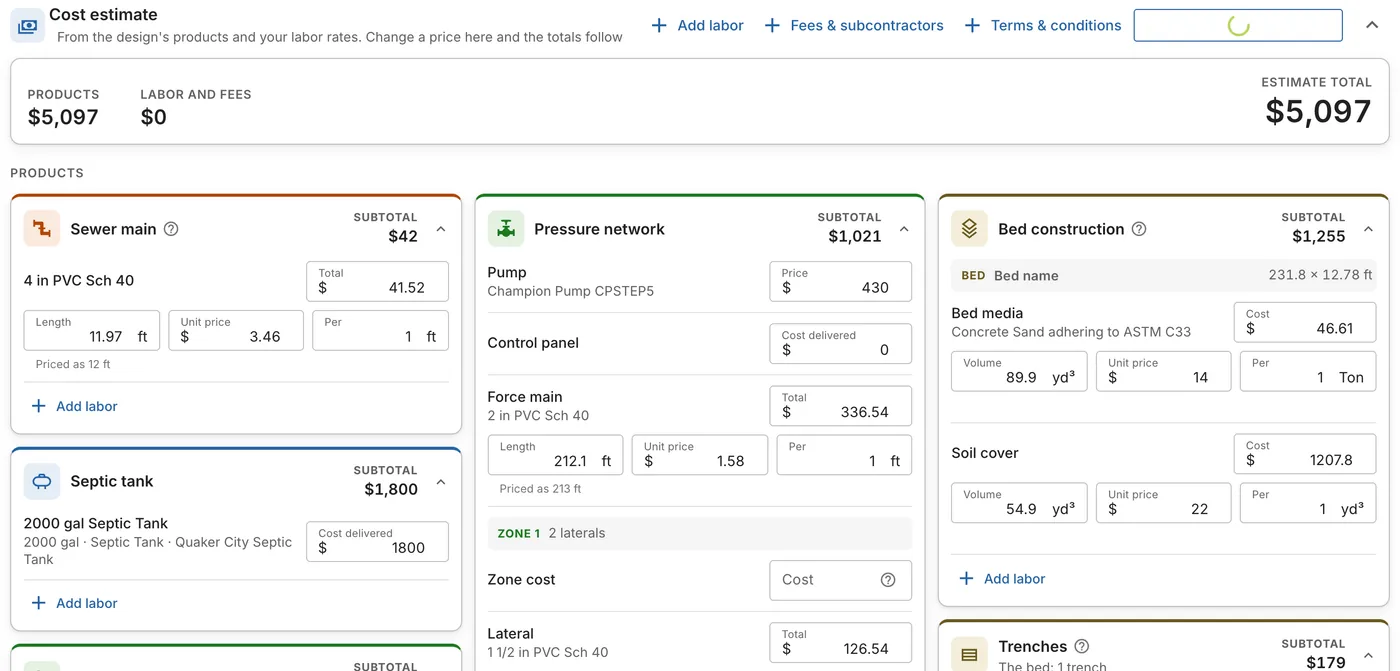
Under Products, each part of the design has a card with its subtotal, for example Sewer main, Septic tank, Pressure network and Bed construction. Each line shows the product and its price:
| Field | What it is |
|---|---|
| Length or Volume | How much the design needs, from the map. |
| Unit price and Per | The price, and the unit it is for, for example $3.46 per 1 ft. |
| Total or Cost | The line's price. |
| Cost delivered | For a tank or a control panel: the price delivered to the site. |
A pipe's price uses the length rounded up to a whole unit, shown as Priced as 12 ft.
Change any price, length or volume here and the totals follow.
Delivery
The Delivery card under Products adds an approximate delivery price for each seller your products come from. All the products from one seller count as one truck trip. Each line shows the seller, how far it is from the site, the price and how it was worked out:
- 31 mi from Buckeye Precast, inside its free zone: the delivered price already includes delivery, so it's $0.
- +$3.00/mi beyond 50 mi: the seller's own price per mile past its free delivery distance.
- Pick-up price: estimated at $3.00/mi, $75 minimum: gravel, sand or pipe priced at the yard. landplan.io estimates the trip at $3.00 a road mile, at least $75.
- Beyond its delivery range: no price. Ask the seller and type it in.
- Boom truck set +$150: a heavy tank, or one set far from the drive, needs a boom truck.
Lines marked Approx. follow the design: change a product or its seller and the delivery is worked out again. Type your own price and the line says Your price. It stays as you typed it until you click the restore button beside it. Delivery is part of the Products total, it's saved with the estimate, and it prints on the estimate PDF: an approximate line with "approx." after the seller's name, your own price as you typed it.
Add labor
Click Add labor at the top of the estimate, or on a part's card to price the labor for that part. In the Add labor window:
- Choose the Labor type, and add a Description if you like.
- Choose what it is Priced by: Volume, Hour, Length or Cost.
- Enter the Price per unit and the Estimated quantity. The Total price follows.
- Tick Save this price per unit as my default for this labor type to use it again.
- Click Add labor.
Fees and terms
- Fees & subcontractors. Permits, inspections and work you hand to others. Choose the Fee type, enter the Price and a Description, then click Add fee.
- Terms & conditions. Text printed with the estimate, such as payment terms. Enter it, then click Add term.
Labor, fees and terms are listed under Labor, fees and terms at the end of the estimate.
Download the estimate PDF
Click Download estimate PDF. The Construction Estimate lists your company, the project location, the system description and each product with its cost, then the labor, fees and the total cost. The cross sections and the hydraulic profile go after the estimate. While they are being made, the button waits.
The estimate is a PDF of its own, not a page of the report. Auto design can make it with the report: tick Include the cost estimate.
Related guides
From the landplan.io blog: