
Find a property and start a project
A landplan.io project is one property, usually one parcel or a few that touch. You start it in the New project window: find the property, check the parcel, choose how to design it, and create the project. The map then opens at the parcel, ready to design.
Find the property
Open the New project window in one of these ways:
- Click New project on the projects page.
- Click Start project on a result of the map search. See Parcel search.
- Right-click the map and choose Create new Project at clicked coordinates.
- Open the map with no project. The window opens by itself.
The window has two tabs, Property and Setup. It opens on Property.
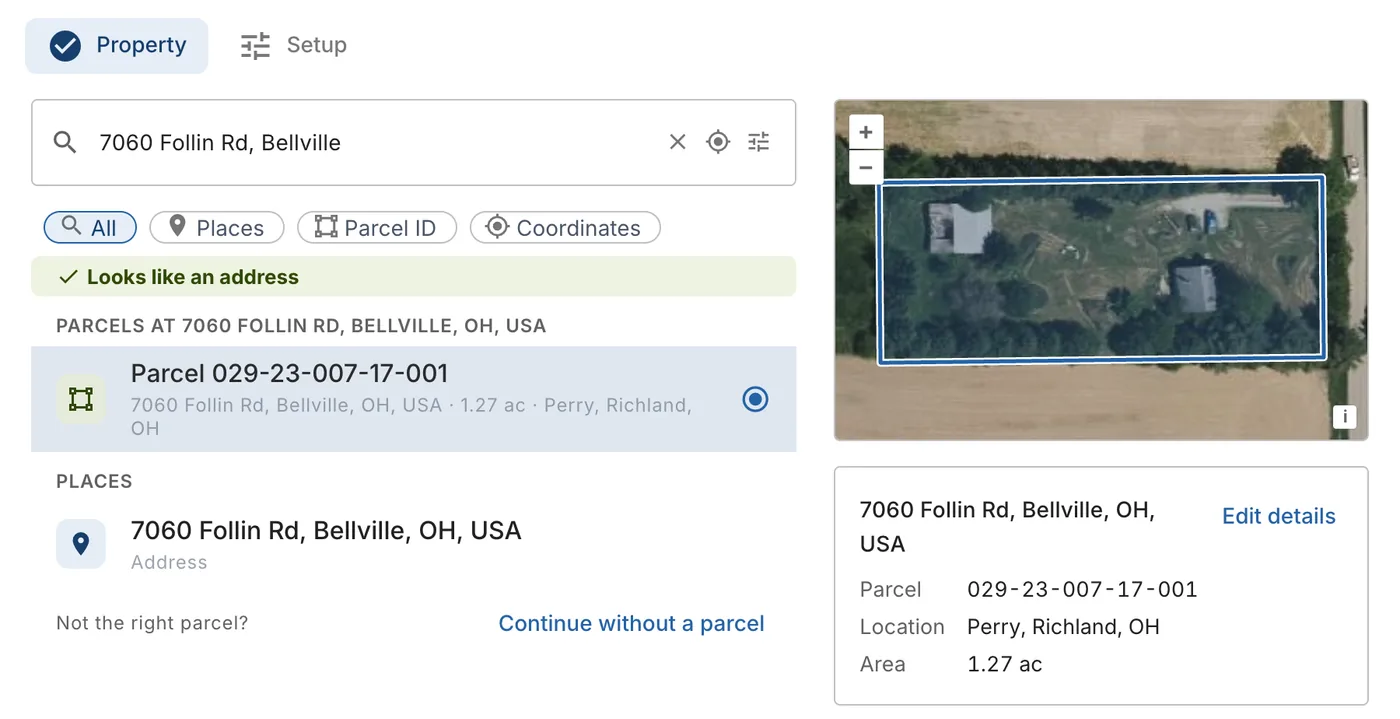
Type in the search box: an address, a parcel ID or a latitude and longitude. The search works the same way as the map search: see Parcel search. You can also click Use my location (the target icon) to find the parcel where you are standing.
When you pick a place, the window looks up the parcels there and lists them under Parcels at the address. The first parcel at the point is picked for you. To pick another, click it in the list.
On the right:
- The preview shows the parcel picked on an aerial photo.
- The summary gives the address, the parcel ID, the location (township, county and state) and the area in acres. Click Edit details to change them, and Done when you have finished.
When a tick shows on the Property tab, the property is picked.
If the parcel isn't right, click Continue without a parcel under the list. If there is no parcel data, see When the parcel is missing.
Click the minimize button in the title bar to hide the window and keep what you have picked. Closing the window, or clicking Cancel, clears it.
A project on this parcel already
When you already have an active project on the parcel you picked (the same parcel ID, or the same address when there is no parcel ID), or your organization has one, the Property tab says so: You have a project on this parcel: with its address, how many maps it has, when it was last edited and its next step. Choose:
- Open that project to open its main map.
- Add a new map to it to open the project with the New map form ready, so a new design goes in the same project. It shows only when you can edit that project.
- Start a separate project to hide the note and make a new project anyway.
Quick create or customize
The footer of the Property tab has two ways to create the project:

- Quick create creates the project right away, with the default setup of your configuration. The map opens and the design starts the way you chose under How do you want to design this property? (see Choose how to design).
- Customize setup opens the Setup tab, so you can set the project type and the site details first. See The Setup tab.
The arrow next to Quick create has two more choices:
| Choice | What it does |
|---|---|
| Quick create | Default settings. The map opens ready to design. |
| Quick create and Auto design | Default settings, then Auto design drafts the system for you. |
Until a parcel or an address is picked, Customize setup and Quick create are grey, and the footer says Pick a parcel or an address first.
When no parcel was found, the buttons read Set up without a parcel and Quick create here. The project is then created at the searched point, and you add the parcel on the map.
You can also quick create from a right-click on the map: Quick create project from this parcel or Quick create and Auto design.
Choose how to design
Once a parcel is picked, the window asks How do you want to design this property?
| Choice | What it does |
|---|---|
| Smart design (Recommended) | Step by step on the map. The guide reads the site and the soil, ranks the systems that fit and places each part with you. This is the default. |
| Auto design | One press. It drafts the house, the system that fits, the tanks, the pipes and the report PDF. |
| Blank map | Opens the map with nothing started, so you draw it yourself with the map's tools. |
Tick Always start with Smart design to make Smart design the choice every time.
The create button on the Setup tab follows your choice: Create and start Smart design, Create and start Auto design or Create project.
For how each mode works, see Smart design and Auto design.
Start from a plan
If you have a site plan or a survey, you can open it on the new project's map. Start from a plan is under the search on a wide screen, and under the property on a narrow one. Click Image or PDF of the plan and pick the file. It can be a PNG or JPG image, or a PDF.
This is optional. Once the project is created, the plan opens on its map, where you scale it by a line you know the length of and drag it into place. See Georeference image tool.
If the file can't be used, you see That file can't be used as a plan: pick an image (png or jpg) or a PDF.
Start from a soil report
If the soil evaluator's report is done, the project can start with its soil tests. Start from a soil report is next to Start from a plan. Pick the report: a PDF, or a photo or scan (JPEG or PNG).
This is optional. Once the project is created and its map opens, the soil test list opens with Import from soil report: each test hole is read with its horizons and limiting conditions, beside the report's page. Check them and save. The report's first test hole updates the soil test the project starts with. See Import from a soil report.
Upload the pages that describe each test hole (the soil descriptions). A site map alone has no soil test to read.
The Setup tab
Click Customize setup to open the Setup tab. It opens only once a property is picked.
First, choose What are you doing on this site?
| Type | For |
|---|---|
| Septic design | System layout, sizing and cost estimate. |
| Soil evaluation | Soil tests, profiles and the soil report. It opens with the soil tools and needs no site details or loading rates. |
If you work in an organization, pick where to create the project under Create in.
For a septic design, fill in:
- Quick start. The site details and loading rates your configuration asks for, such as the bedrooms. Some start with a value found nearby, marked from nearby tests or from the map under the field. Click the star next to a field to make its value your default for new projects (Use this … as my default for new projects).
- Limiting conditions. Optional. Open it to set them now, or set them later in the design.
On the right, the summary says where the map will open, and the window asks how to design the property, as on the Property tab.
Click Back to return to Property. Click the create button (for example Create and start Smart design) to create the project. The map opens at the parcel with the design tools ready.