
Billing
The Billing page has your plan, your payment methods, your receipts and your project credits, all in one place.
To open it, open the account menu, then Account > Billing. The page is at landplan.io/billing.
Payments are made by Braintree, a PayPal service. Card details go straight to Braintree: landplan.io never sees or stores your full card number.
The Billing page
The page has four sections. On a computer they are listed on the left; on a phone they are buttons across the top.
| Section | What's in it |
|---|---|
| Overview | Your plan, your credits, what you spent this year, your default payment method and your recent receipts. See Your plan. |
| Payment methods | Your saved cards. See Payment methods. |
| Receipts & invoices | Every payment, with a PDF of each. See Receipts and invoices. |
| Project credits | Credits for paying per project. See Project credits. |
At the top right, Help with billing opens the contact form on Billing & plans, and Change plan (or Choose a plan) opens Choose your plan.
Your plan
Overview starts with your plan.
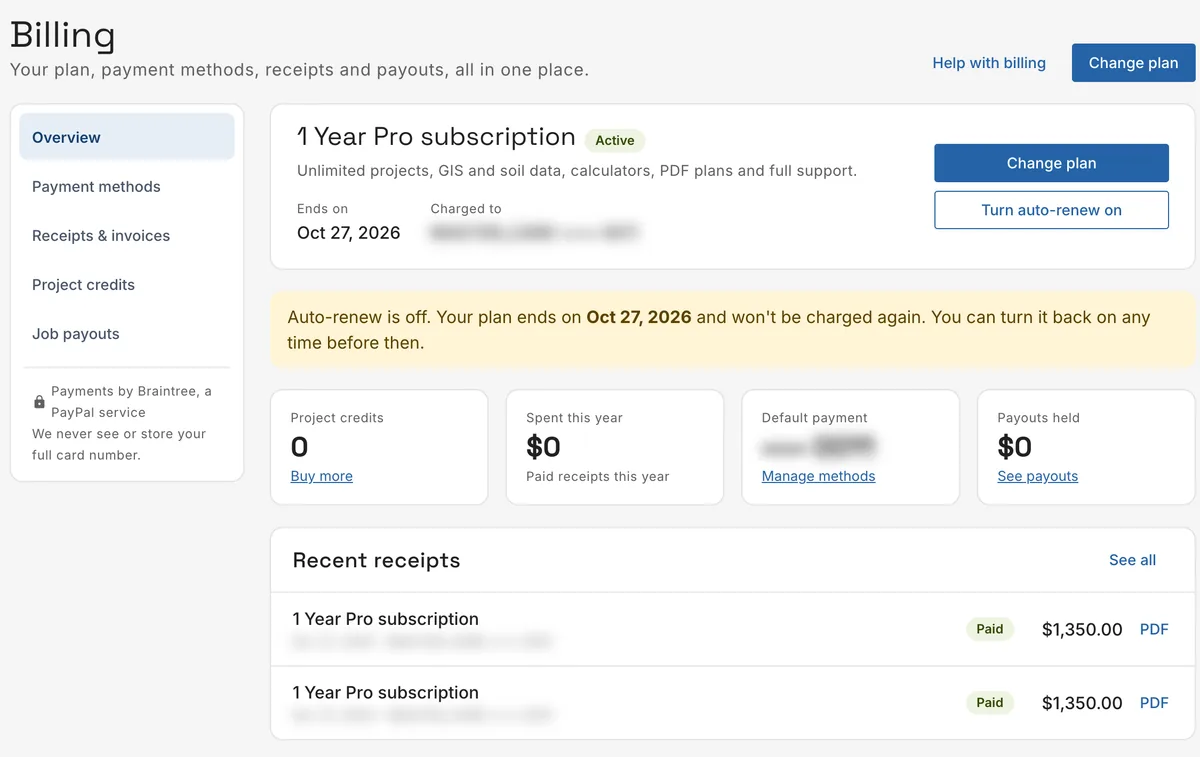
| Item | What it shows |
|---|---|
| The plan's name and status | For example 1 Year Pro subscription, Active. Other statuses: Trial, Pending, Past due, Canceled and Expired. |
| Renews on or Ends on | When the plan renews, or ends if auto-renew is off. |
| Next charge | What the next renewal costs, with the list price struck through when you pay less. |
| Charged to | The payment method renewals are charged to. |
Under the plan are three tiles: Project credits (Buy more), Spent this year and Default payment (Manage methods). Recent receipts lists your last payments, with See all.
Without a plan, the card says No plan yet: choose Pro for unlimited projects, or Basic to pay per project with credits.
Auto-renew
A plan renews by itself at the end of each period and is charged to your default payment method.
- Turn off auto-renew asks first, then your plan ends on its end date and isn't charged again. A yellow note says so on the Overview.
- Turn auto-renew on asks first, saying when it renews, for how much and to which card.
You can turn it back on any time before the plan ends.
Change your plan
Change plan (or Choose a plan, or Pay for a plan in the account menu) opens Choose your plan:
- Pick a plan, for example a monthly or a yearly Pro plan. Prefer pay-per-project? Basic plan with credits picks the Basic plan.
- Under Area and discounts, pick Where you work (prices can depend on the state), the County (optional), and enter a Discount code if you have one, then Apply.
- Under Pay with, pick a saved card, or Use a new card.
- Check the Order summary and click the pay button, for example Pay $1,200.00.
If you already have an active plan, the page says so: change or cancel it under Billing before starting another. Payments are charged in US dollars. A plan renews automatically until you turn off auto-renew.
An organization's plan and seats are billed to the organization, on its Billing page. See Organization.
Renewal didn't go through
If a renewal fails, a red banner at the top of Billing says Your renewal didn't go through., with the amount and the date it was due.
- Update card opens Payment methods, to fix or replace the card.
- Pay … now pays the amount due with the card you choose.
Payment methods
Payment methods lists your saved cards: the card brand, the last four digits and the expiry date.
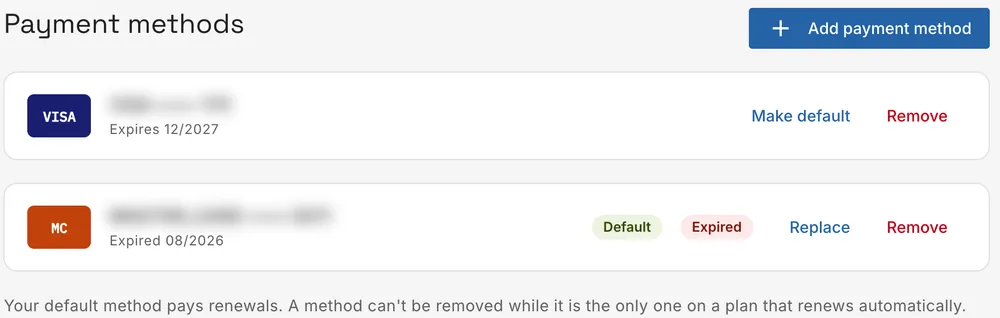
| Button or mark | What it does |
|---|---|
| Default | This card pays your renewals. |
| Expired or Expires soon | The card has expired, or will soon. |
| Add payment method | Add a card. Tick Make this my default for renewals to use it for renewals, then click Save payment method. |
| Make default | Use this card for renewals. |
| Replace | Shows on an expired or expiring card: enter the new card and click Update Payment Method. |
| Remove | Removes the card, after asking. |
A card can't be removed while it is the only one on a plan that renews automatically.
Receipts and invoices
Receipts & invoices lists every payment: Date, What, Paid with, Amount and Status. Click PDF to download a receipt.
- The buttons above the list show All, or only Plan or Credits payments.
- Status is Paid, Failed or Refunded.
On a phone each receipt is a row with a download button.
Project credits
A project credit opens one project: its full design and report. Credits are for the Basic plan, which pays per project. They need an active plan.
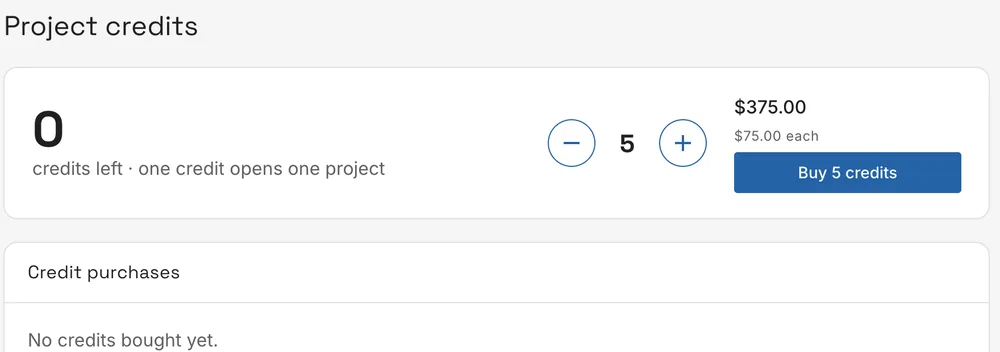
Project credits shows how many credits you have left. To buy more:
- Set the number with − and +. The price and the price of each credit update as you go.
- Click Buy … credits. Buy project credits opens.
- Check How many? (quick picks 1, 5, 10 and 20, up to 50 in one purchase). Buying more than one costs less for each credit.
- Optionally, under Use one credit on a project now, pick a project to open with one of them.
- Under Pay with, pick a card, then click the pay button, for example Pay $100.00.
It is a one-time charge. Credits don't expire while your plan is active. Credit purchases lists the credits you bought.