
Annotations are now print notes
landplan.io used to have an Annotate tool for text that showed only when you printed the map. It is gone. Notes on the print page do the same job, and more: text, callouts, arrows, dimensions and a note box. They are saved with the map and printed in its PDF.
What happened to your annotations
Nothing is lost. When you open a map that has annotations, each one becomes a Text note on its print page:
- At the same place on the map, with the same words.
- With its size, colour, bold or italic, outline, background box and turn. The font family becomes the standard one.
This happens once for each annotation, on every device. If you change or remove the note, the annotation does not come back. The notes show in print mode only, not on the map. Click Print in the bar at the top of the map to see them.
Add text to a plan now
Click Print in the bar at the top of the map.
Click Text in the page tools, in the command bar above the page.
Click the map where the text goes.
Type the words in the Text window and click OK.
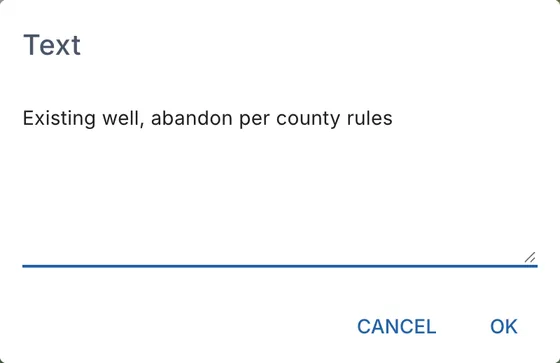
To move a note, click Select and drag it. To change or remove it, click it with Select on. Undo on the page takes back the last change on the page. See Notes on the print page for callouts, arrows, dimensions and the note box.
Saved annotations
Annotations you saved to your drawings still work. Open Tools > Basic tools > Saved features, click the map and select the saved annotation: its words are added to the print page as a new Text note, and a message says Saved text added. In the list, these show annotations under Component/Layer Name. See Save and reuse drawings.