
Your company
landplan.io keeps a list of septic companies: manufacturers, distributors, installers and service companies. When your account is linked to your company, you can:
- Manage its page, products, prices and inventory, and get the verified badge.
- Put the company's name on your plans and estimates.
- Apply for design jobs: the offer goes out under your company's name. See Submitting a job.
There are two ways in. Claim the company if nobody manages it on landplan.io yet, or if you can prove you work there with your work email. Ask to join it if a colleague already manages it.
Claim your company
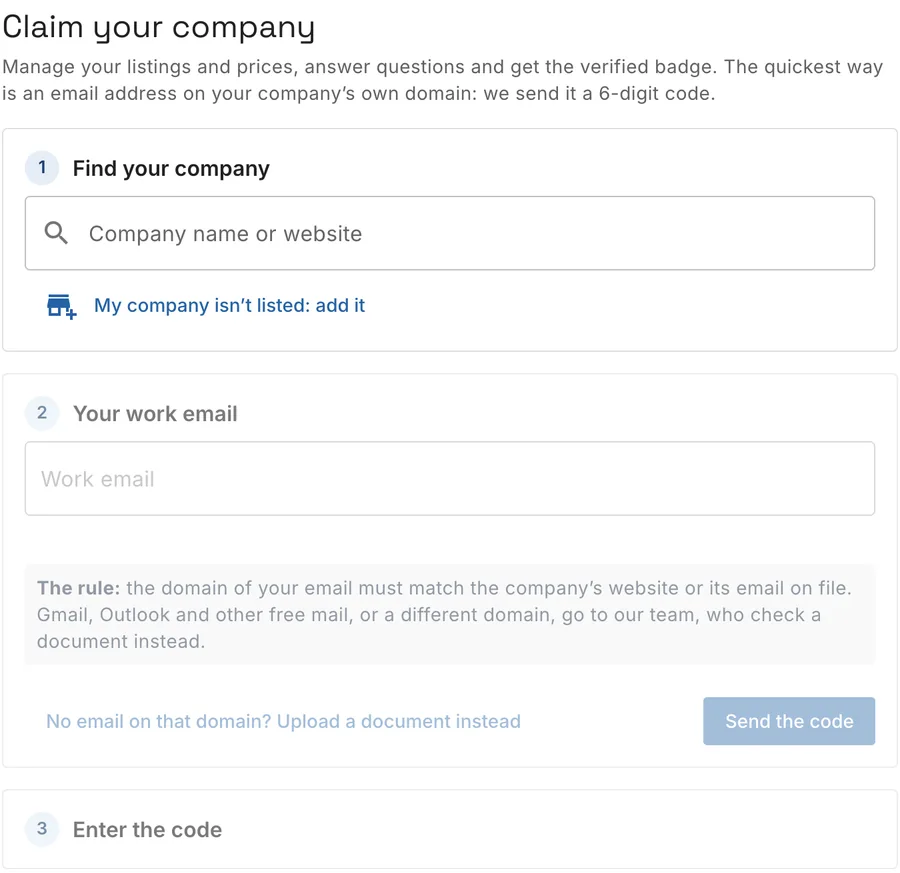
- Open the account menu and click Add my company (under your profile). Claim your company opens. A company's page also has a Claim this page link while nobody manages it.
- Find your company. Type its name or website in Company name or website and click it in the list. Each result says Not yet claimed or Claimed. Not listed? Click My company isn't listed: add it and enter its Company name, Website, Phone and address.
- Your work email. Type an email at your company's domain, for example
you@valleyseptic.com, and click Send the code. - Enter the code. Type the 6-digit code we emailed you and click Verify. The code works for 15 minutes. Send a new code sends another.
When the code checks out you see Verified: you now manage the company, and the verified badge shows on its page and products. Click Go to my inventory to start on its listings.
The rule: the domain of your email must match the company's website or its email on file. Under the email, the form tells you how it looks:
| What it says | What happens |
|---|---|
| ✓ Matches the company's website | We can verify you right away with the code. |
| … is free mail (Gmail, Outlook and other free mail) | Our team checks the claim instead of a code. |
| … doesn't match … | Our team checks the claim instead of a code. |
| We have no website or email on file to compare with | If it can't be matched, our team checks it. |
If someone already manages the company, you can still claim it with your work email: if it checks out, you are added too. Or ask them to add you.
When our team checks a claim
When the email can't prove it, or you click No email on that domain? Upload a document instead, the page says Our team checks this claim.
- Add a document that shows you work at the company: a licence, letterhead or an invoice with your name. A PDF or a photo, under 15 MB.
- Click Send the document. You see Document received. We'll be in touch.
We may also call the number on the company's website. We email you when it is decided, usually within two working days.
Ask to join a company
If a colleague already manages your company on landplan.io, ask to join it instead:
- Open the company's page (from Companies map, a product's page or a search).
- Click I work here.
- Add Your job title, and for soil evaluators your Professional designation (such as CPSS or REHS) and Certification or license, and your Mobile phone.
- Click Ask to join.
The company's admins confirm you on its People tab.
Edit your company
With a company on your account, its name shows under your profile in the account menu. Click the company's name to see its public page, or the pencil (Edit your company information) to edit it. The edit page is Company and people, with three tabs:
| Tab | What's on it |
|---|---|
| Profile | Company name, Code (page address), About the company, what the company is (Manufacturer, Distributor, Installer, Service), Contact (phone, extension, fax, Email buyers see, office email, website), headquarters and branches, and the logo (Upload a logo: PNG, JPEG, WebP or GIF, at most 10 MB; it prints in the title block of your plans). Click Save profile. |
| Services | Services performed: tick what the company does, then Save services. |
| People | Who works there. Only the company's admins see this tab. |
Public page at the top opens the page buyers see.
Company people
On the People tab, the company's admins manage who belongs to it:
- Asking to join: people who asked to join. Pick their role, Admin or Member, then click Approve or Decline. The tab's name shows how many are waiting, for example People (2 waiting).
- Members: people with a landplan.io account at the company. Add a member adds one by their landplan.io account email, with a role. Edit or remove a member with the buttons on their row.
- Employees and soil evaluators: people listed with the company without an account, for example a soil evaluator whose name goes on reports. Add a person adds one with their name, job title, phone, email, professional designation and certification or license.
An Admin can edit the company's profile, services and people. A Member sees the company's profile read-only.