
Projects map
The Projects map shows your projects as pins on a map, so you can see where your work is. Each pin is coloured by the project's status and lettered with its system. It is a light map of its own, without the design map's layers and tools.
Open the Projects map
On the Projects page, click Map view at the top right. You can also go to /projects-map. To go back to the list, click ← Projects at the top left.
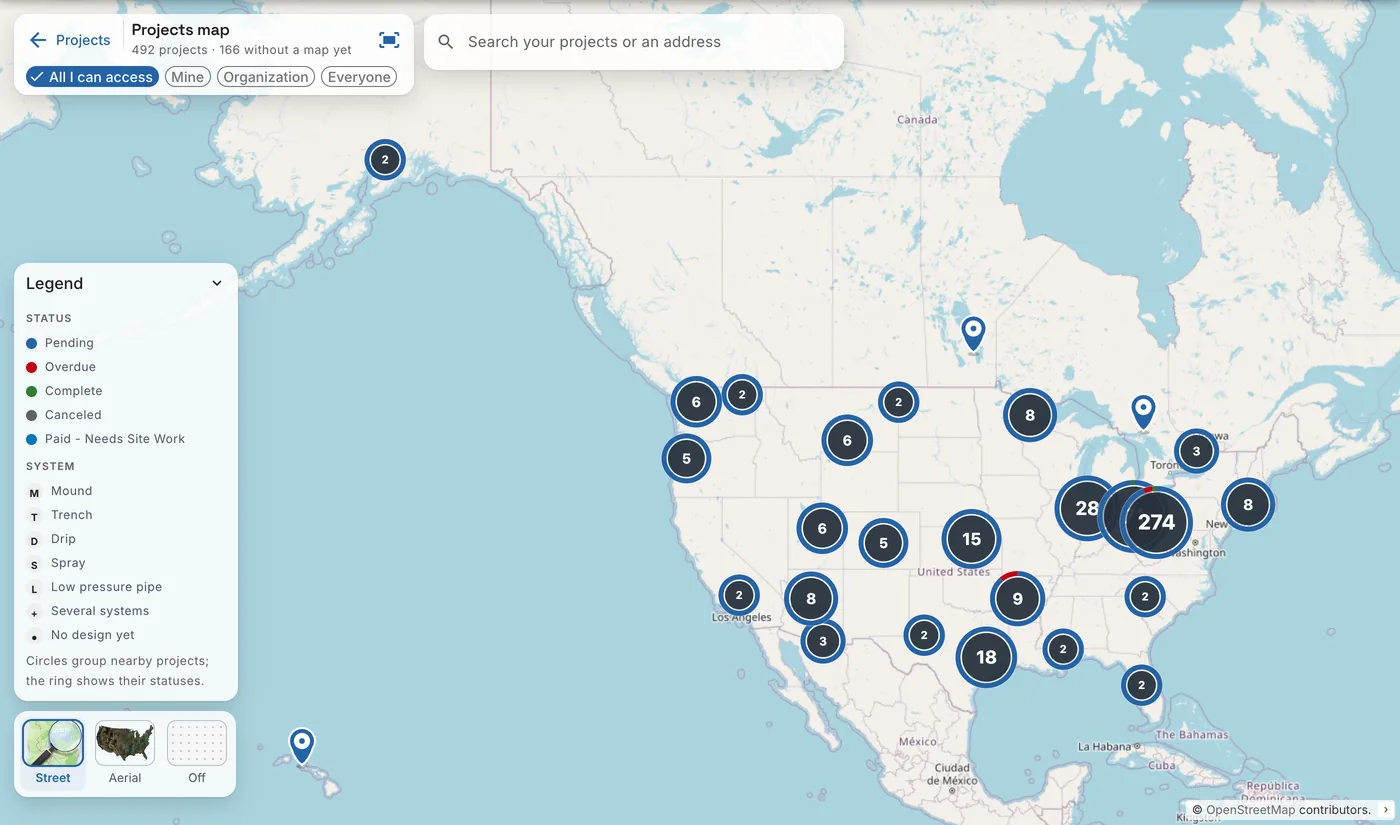
The title box at the top left says how many projects are on the map, and how many have no saved map yet. A project shows on the map once its map is saved: its pin sits where its last saved map is. Click Zoom to all the projects (the frame icon) to see them all again.
Which projects
The chips under the title choose which projects show:
| Chip | Projects |
|---|---|
| All I can access | Your projects and your organization's. This is where the map starts. |
| Mine | Your own projects. Shown when you belong to an organization. |
| Organization | Your organization's projects. Shown when you belong to an organization. |
Without an organization, only All I can access shows. The map zooms to fit the projects each time you change the chip.
Pins, clusters and the legend
Each project is a pin:
- The colour is the project's status, from your list of statuses. See Statuses.
- The letter is the system designed on its map.
Nearby projects are grouped in a circle with their number. The ring around the circle shows their statuses: a red segment, for example, means some of them are overdue. Click a circle to zoom in on its projects. When the projects are at the same spot, or you are zoomed in all the way, the panel lists them instead: 5 projects here. Click one to open it.
Point at a pin to see the project's address. Click it to open the project panel.
The Legend at the bottom left explains the colours and letters. Click Legend to close or open it.
| Letter | System |
|---|---|
| M | Mound |
| T | Trench |
| D | Drip |
| S | Spray |
| L | Low pressure pipe |
| + | Several systems |
| • | No design yet |
Search
Type in Search your projects or an address:
- Under Your projects, pick a project to open it. Each one shows its place, system and status.
- Under Addresses, pick an address to zoom to it. The map outlines its parcel, or zooms near the place when there is no parcel. A blue dot marks it.
Click the × in the search box to clear it.
The project panel
Click a pin, or a project in the search, to open the project panel on the right. The map zooms to the project's parcel and outlines it.
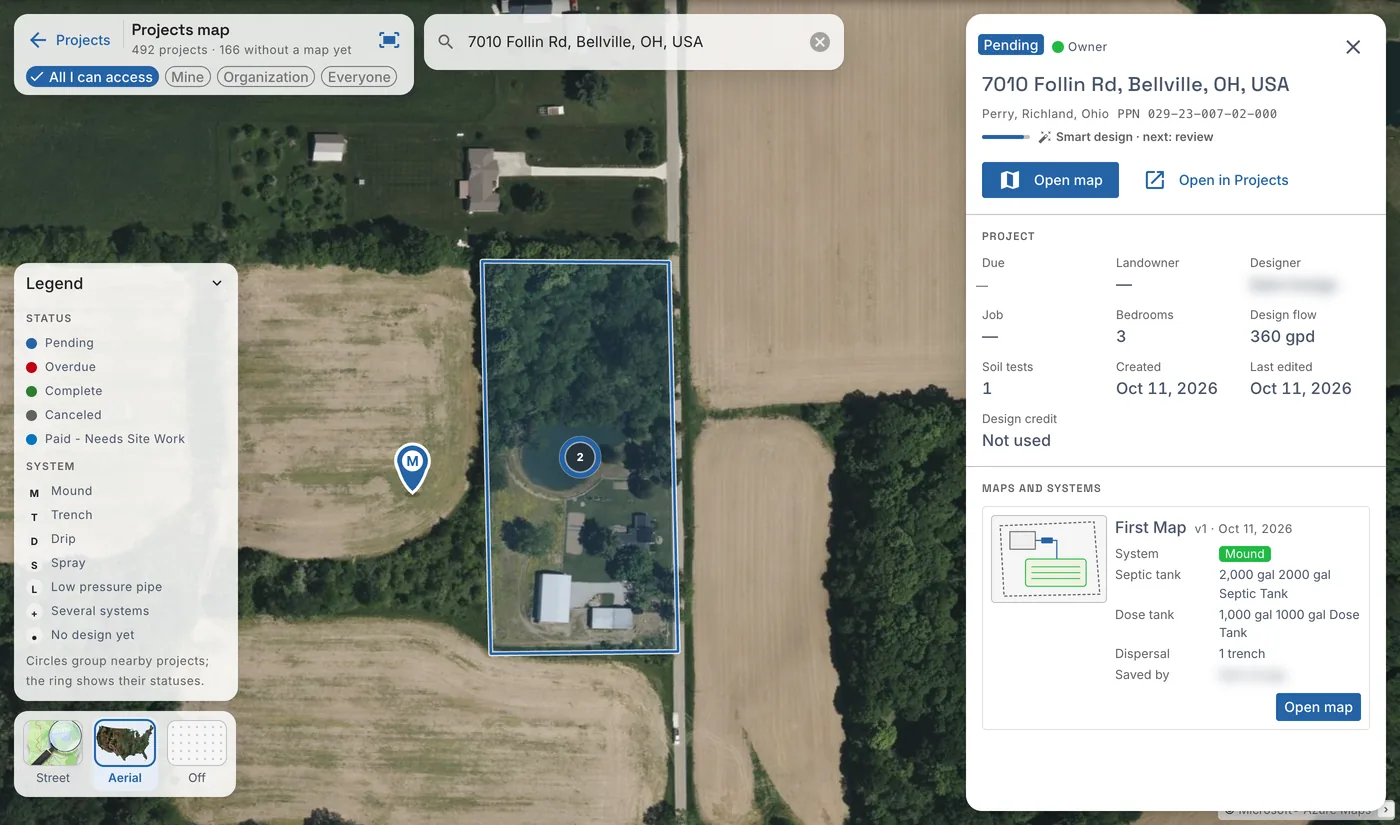
The panel is a short version of the project panel on the Projects page: the status and access, the address and parcel number, how far Smart design has got, the project's facts, and its maps and systems.
- Open map opens the project's map. Open map on a map's card opens that map.
- Copy to my projects copies a project you can only view into your projects.
- Open in Projects opens the project on the Projects page, for everything else: Smart design, status, due date, comments, archive and more.
Close the panel with the ×, or click an empty part of the map.
Base maps
The buttons at the bottom left choose the map under the pins:
- Street: a street map.
- Aerial: aerial photos.
- Off: no base map, only the pins.
The map remembers your choice, and whether the legend is open, the next time you open it on this device.
On a phone
On a phone the title, chips and search sit at the top. The project panel opens over the lower half of the map.