
Save and reuse drawings
When you have drawn something you will need again, such as a house plan you build often or a standard set of notes, save it to your drawings. Your saved features belong to your account, so you can place them in any of your projects.
In short:
- Right-click the feature and open its actions with the arrow.
- Choose Save feature to my drawings, name it and click Save Feature.
- To use it again, open Tools > Basic tools and click Saved features.
- Click the map where it goes, then click Select next to the saved feature.
Save a feature
- Right-click the feature on the map (press and hold on a touch screen).
- Under Features here, click the arrow next to the feature to open its actions.
- Choose Save feature to my drawings.
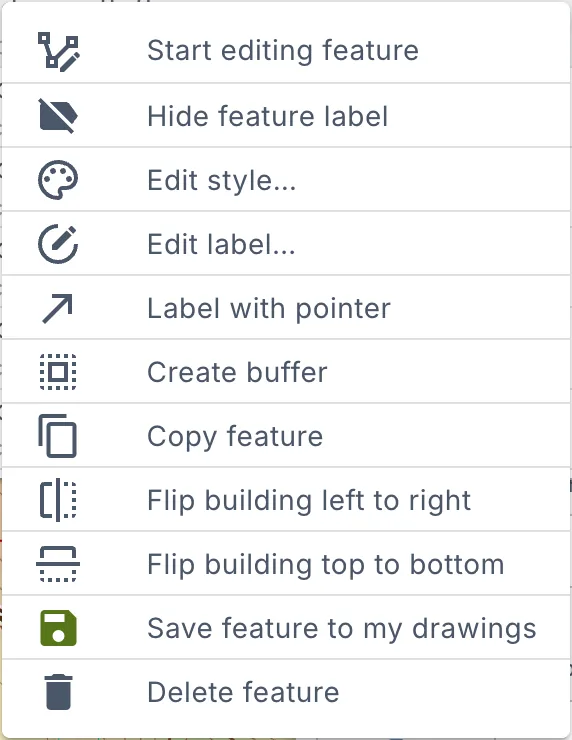
The Save feature to my drawings window opens.
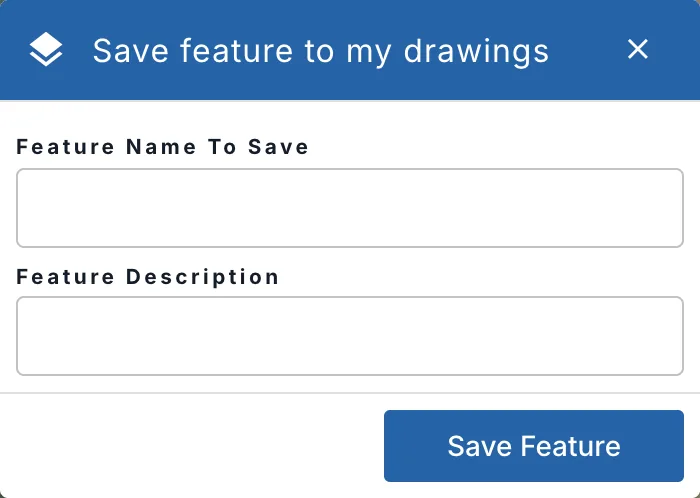
- Type a Feature Name To Save you will recognise, for example 3 Bedroom Dwelling.
- Add a Feature Description if it helps, for example Colonial house, garage on the right.
- Click Save Feature.
The feature keeps its shape and its properties, such as a building's bedrooms and flow. Save feature to my drawings is offered for the features that are saved with the map: not for data layers or uploaded files.
Place a saved feature
- Open Tools > Basic tools and click Saved features, under Import & export.
- Click the map where the feature goes. The Saved features window opens.
- Find the feature: type in Search Here to filter the list by name, description or layer.
- Click Select next to it, or click its row.
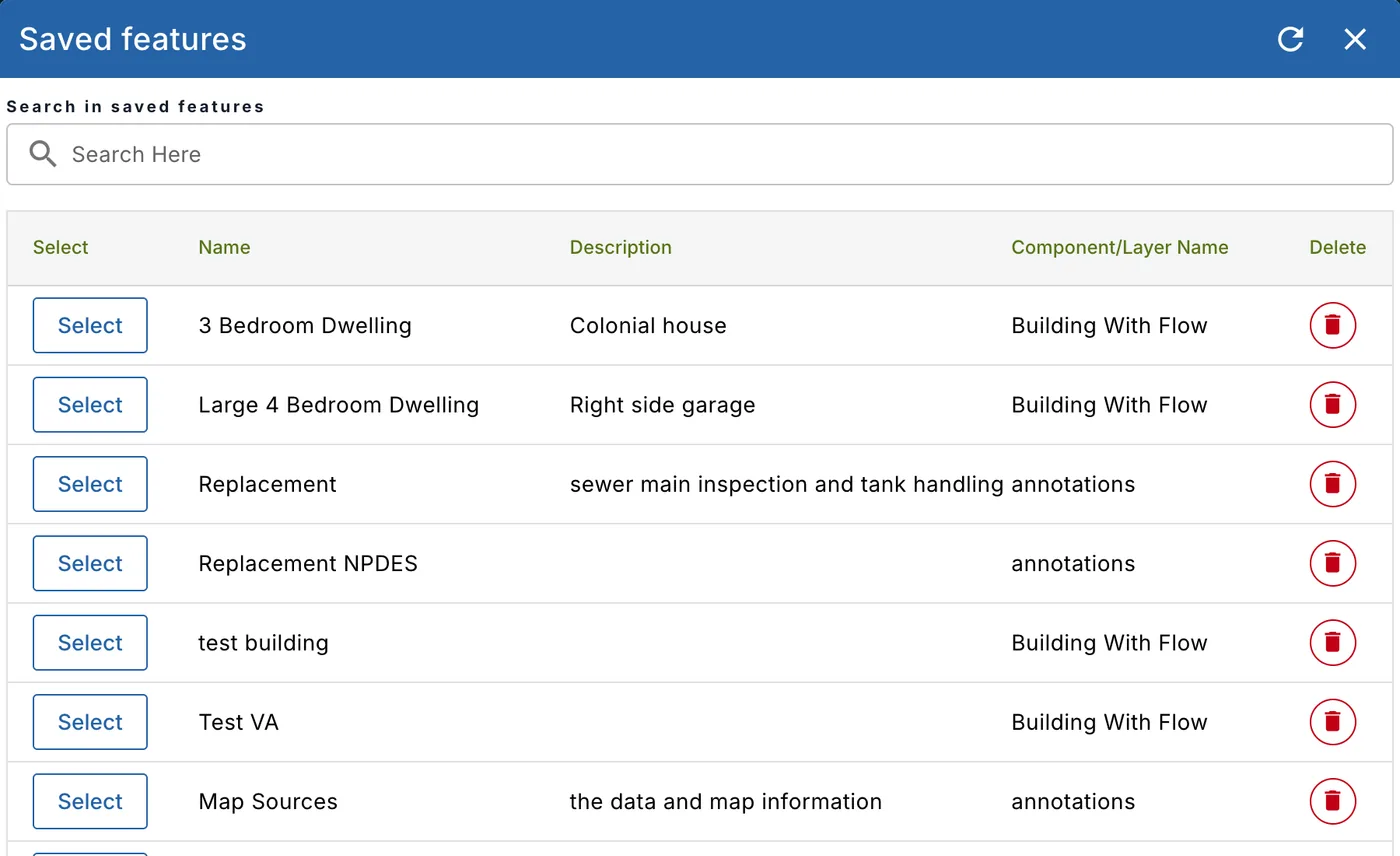
The feature is drawn at the spot you clicked, on the layer of its kind, and a message says Successfully created feature from saved feature list. Move or turn it into place with the edit tools.
| Column | What it shows |
|---|---|
| Select | Places the feature. |
| Name and Description | What you typed when you saved it. |
| Component/Layer Name | The layer the feature goes on, by its name, for example Building With Flow. A text saved from the old map annotations reads Text (placed as a print page note): it is placed as a note of the print page. |
| Delete | Deletes the saved feature. |
The arrow at the top of the window reloads the list. If a feature can't be placed, you see Unable to create feature, try a different feature.
Delete a saved feature
Click the red delete button at the end of its row. Delete saved feature? asks first: click Delete to delete it, or Cancel to keep it. A deleted feature is gone from your drawings in every project. The features you already placed on maps stay.